Play Mode is Fretlist's stage view: your song fills the screen as a large, clean chord sheet, with everything you need to perform tucked into a floating control stack and a slim header. It auto-scrolls in time with the song, keeps the screen awake, runs a metronome, shows chord diagrams, and moves through a whole setlist hands-free. It's built to be read at arm's length, on a stand, mid-gig.
Opening Play Mode
- From a song: open any song and tap Play Mode (the monitor-with-a-play icon in the action row).
- From a setlist: open a setlist and tap Play Setlist. This plays the whole set in order, so you can move song to song without leaving the stage view.
- On a keyboard: press P while viewing a song or setlist.
Play Mode opens as a full-screen layer over the app, so you never lose your place underneath.
Setlist context
When a song belongs to a setlist and you open it from that setlist, Play Mode carries the set with it: you get the same song-to-song navigation as full setlist playback (a song counter, chevrons, swipe, and the end-of-song pill). Open a standalone song that isn't part of a set and Play Mode is just that one song, with no navigation.
What's on screen
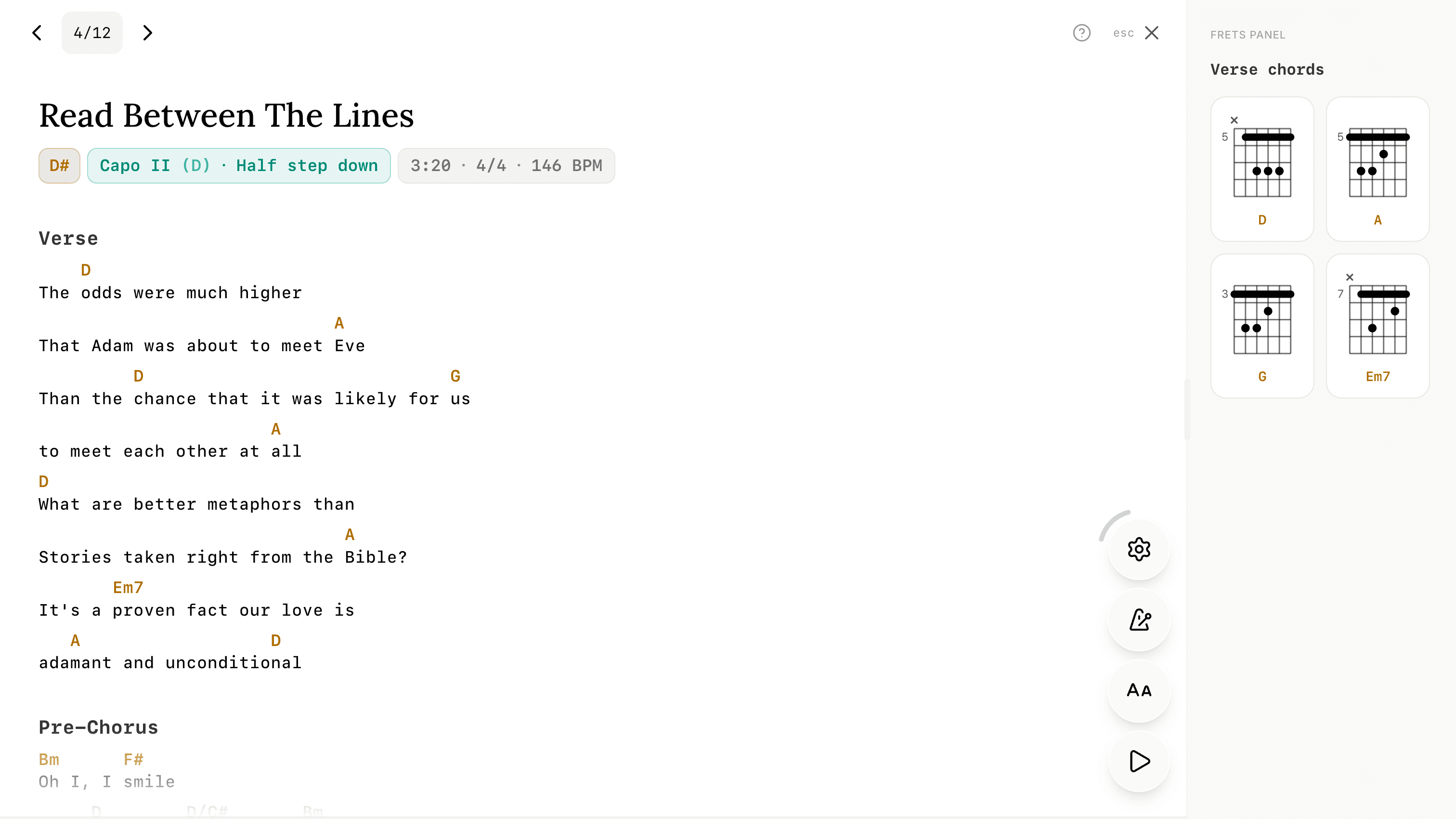
When Play Mode opens you see, from top to bottom:
- The chord sheet itself, rendered large in the performance font, with your saved transposition, capo, flats/Nashville choices, and chord/tab visibility already applied.
- A slim header across the top. In a setlist it shows a 1/12 song counter (tap it to open the full song list), with previous/next chevrons. On desktop it also carries a ? keyboard-shortcuts button and the close button; on a phone it has a small drag handle you can pull down to exit.
- The floating control stack in the bottom-right corner.
- A thin progress bar along the very bottom edge that fills as you scroll, so you can see at a glance how far through the song you are.
Auto-scroll
Tap the Play button (bottom of the stack) to start scrolling; tap again to pause. The scroll is buttery and sub-pixel smooth at any speed.
Smart speed is the default: Fretlist paces the scroll to the song's length, so a 3:10 song reaches the bottom in about 3:10 and you finish reading right as the song ends. A teal sparkle in the speed control means smart speed is active. Songs without a saved duration fall back to a calm default speed you can nudge.
While scrolling, a speed control (a gauge) slides in just above Play. Open it to fine-tune the pace, or tap the sparkle to snap back to smart speed. Once you reach the bottom, Play disables (it has nothing left to scroll); scroll back up and it's live again.
The control stack
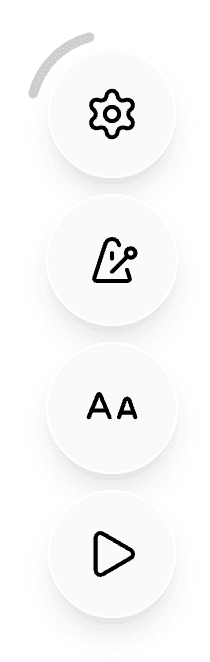
The floating stack in the bottom-right holds the controls you reach for on stage. From the top:
- Settings (gear) — opens the setup sheet (below).
- Metronome — tempo, time signature, and tap tempo.
- Text (an Aa icon) — a small popover with text size (
−/ value /+) and line spacing (−/ value /+). Click either value to reset it. - Auto-scroll speed (gauge) — appears only while scrolling.
- Play / Pause — at the bottom, under your thumb.
A curved drag handle rides the top-left of the stack. Drag it up or down to resize every control at once across five sizes, so you can make the buttons big enough to hit reliably on whatever device is on your stand. The size is remembered per device.
Settings (the gear)
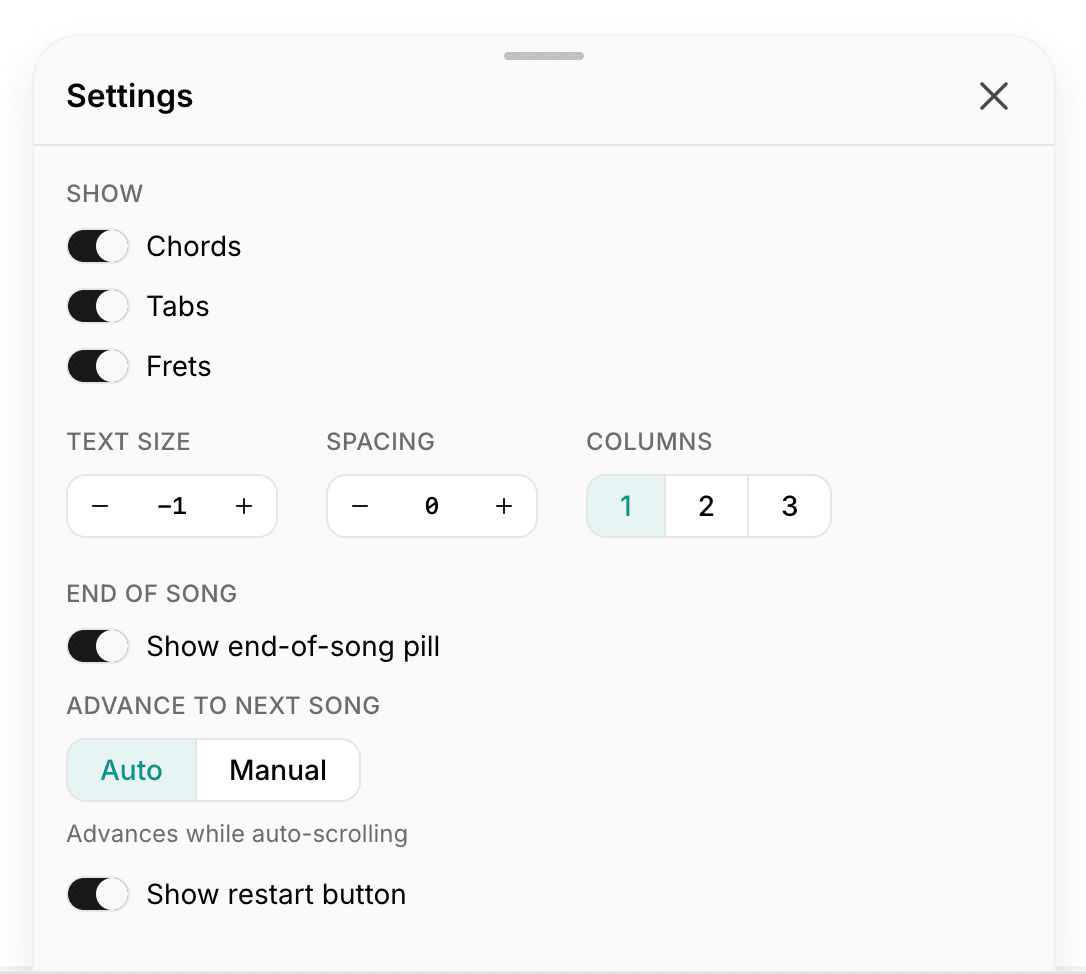
The Settings gear opens a roomy sheet that slides up from the bottom; the chord sheet stays visible behind it so every change previews live. Dismiss it by swiping it down, tapping the ×, pressing Esc, or just using any other control.
- Show — switches for Chords, Tabs, and (if you use chord diagrams) Frets. These are the same per-song display settings as the song view.
- Text size, Spacing, and (on a wide screen) Columns — the same steppers as the bar's Text popover, plus a 1 / 2 / 3 column layout for fitting a song on one screen. Columns is landscape/desktop only.
- End of song — the end-of-song pill and how it behaves (see below). The pill's behavior switch (Advance to next song: Auto or Manual) and the Show restart button switch only appear when you're in a setlist.
Metronome
Open the Metronome from the stack. Set the tempo by clicking the BPM number and typing (30–300), or tap the Tap button four times to set it by ear. Click the time signature to edit it, and Reset to clear an override. The metronome is independent of auto-scroll, so you can click along whether the sheet is moving or not.
Chord diagrams (Frets)
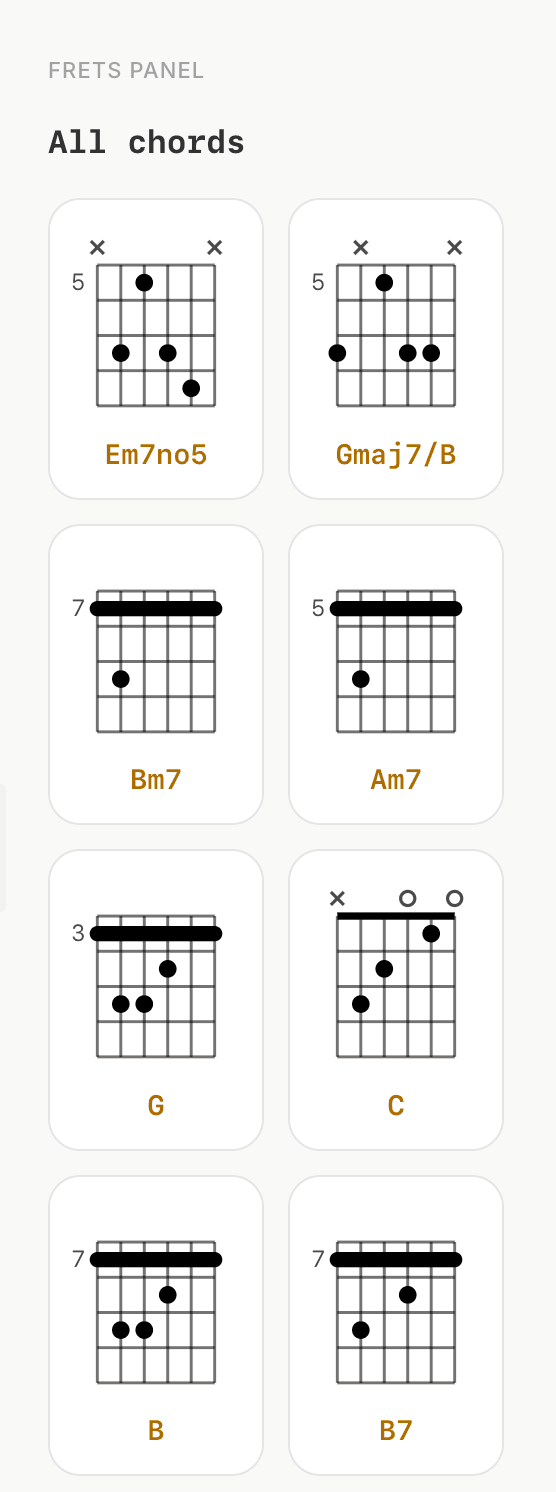
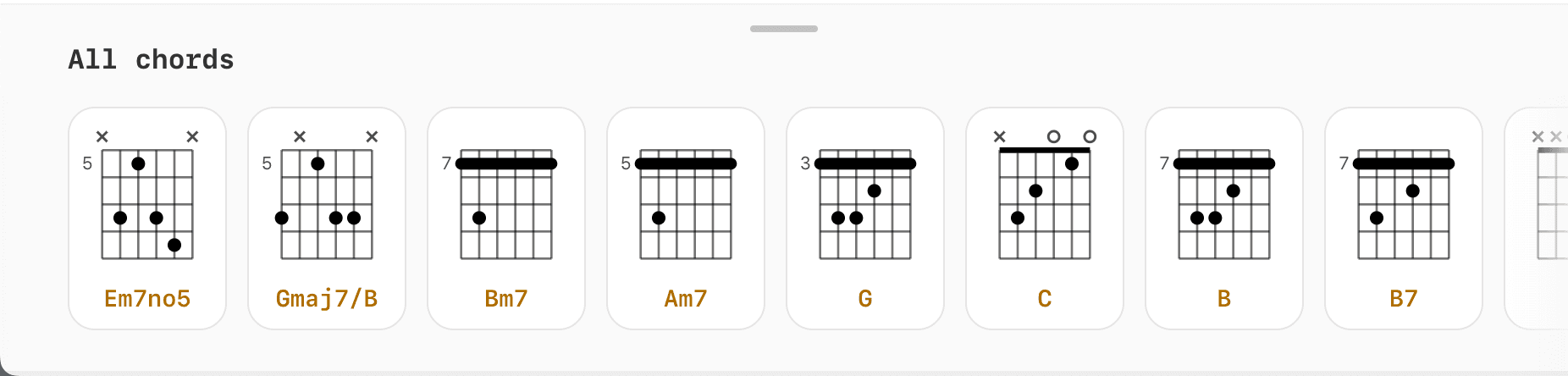
If you have Frets turned on, Play Mode shows the chord shapes for the part you're on, following your global Frets setting. On a wide screen they sit in a rail down the right edge (drag its inner edge to resize it, or collapse it to a thin strip you click to reopen). On a phone or tablet they dock along the bottom; drag the dock's handle to make it taller for a second row of shapes, or down to close it. Toggle Frets anytime from the Show group in Settings or with the F key. See Getting the most out of Frets for how the diagrams are built.
Moving through a setlist
In a setlist (or a song opened from one), several ways move you between songs:
- Header: the previous/next chevrons, or tap the 1/12 counter to open the full song list and jump to any song.
- Swipe: swipe left or right anywhere on the sheet.
- Tap the edges: on a touch screen, tap the left edge for the previous song or the right edge for the next.
- Keyboard / foot pedal: the arrow keys, or Page Up / Page Down.
The end-of-song pill
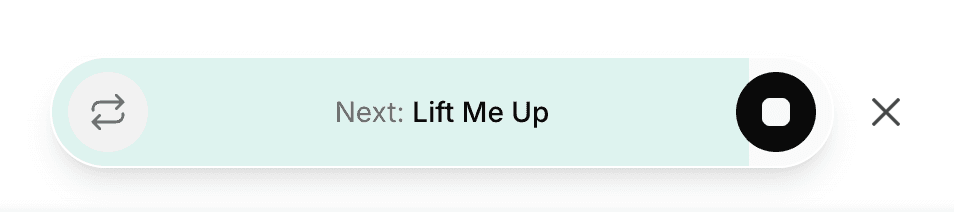
When you reach the bottom of a song in a setlist, a pill slides up offering the next song. How it behaves is your call, set under End of song in Settings:
- Manual (the default): the pill waits. Tap it to move to the next song and start playing it. It's a deliberate "go," handy when you want to cue the next number yourself.
- Auto: while you're auto-scrolling, the pill counts down and advances on its own, then keeps scrolling the next song. A stop button cancels the countdown, and you can tap the pill to skip ahead immediately.
A small restart button on the pill takes you back to the top of the current song (and resumes the scroll if you were scrolling). On the last song of a set, or a standalone song, the pill simply offers that restart. Don't want the pill at all? Its × turns it off, and you can switch it back on in Settings.
Keyboard shortcuts and foot pedals
On a keyboard, press ? for the full shortcut list (the ? button in the header opens it too). The essentials:
- Space — play / pause auto-scroll
- ↑ / ↓ — scroll up / down
- , / . — previous / next section
- [ / ] — scroll speed down / up
- + / - — font size up / down
- F — toggle Frets M — toggle metronome T — tap tempo
- → / ← or PgDn / PgUp — next / previous song (in a setlist)
- Esc — exit Play Mode
Foot pedals work through these same keys. Most Bluetooth page-turners send Page Up / Page Down, which step through the songs in a set (or scroll, on a single song). If your pedal lets you remap its keys, set them to . and , to jump between sections instead.
On stage
- The screen stays awake. Play Mode holds a wake lock so your device won't dim or sleep mid-song.
- It works offline. Once a song is saved on your device it plays in full with no connection, so a dead-zone stage WiFi is no problem.
- It's touch-free if you want. Between smart-speed auto-scroll, a foot pedal, and the auto-advancing end-of-song pill, you can get through a whole set without touching the screen.
Leaving Play Mode
Close Play Mode with the × (top-right) or press Esc. On a phone you can also pull down the handle at the top. If you were playing a setlist, you land back on the song you were viewing when you exited, with its link back to the setlist intact.
Related
- Getting the most out of Frets: the chord diagrams shown in the Frets panel
- Chords over Lyrics and ChordPro: the two formats your chord sheets are written in
- Printing and exporting: a paper or PDF copy of the same chord sheet