Every song and setlist can be shared with a public link. Anyone with the link can open it in their browser, transpose it, play it, and print it, with no account. Turn on import and they can also pull it straight into their own Fretlist, which is how bands keep everyone on the same charts.
Opening the share dialog
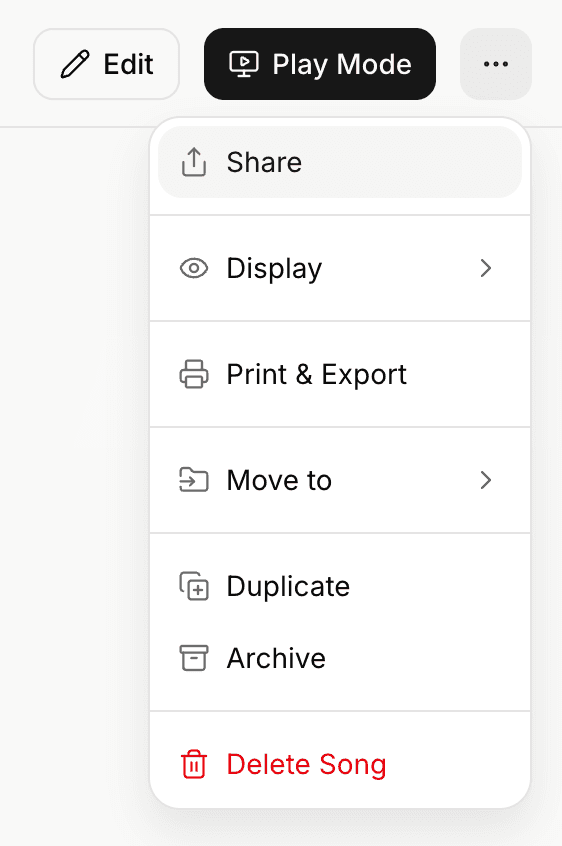
Open any song or setlist, then open the ... menu (the More actions button in the action bar) and choose Share. There is no separate Share button on the page; it lives in this menu on both songs and setlists.
Once sharing is on, the same menu item reads Shared instead, with a quick copy-link button on its right so you can grab the link without reopening the dialog. Sharing actions need a connection, so the item is disabled offline.
What's in the share dialog
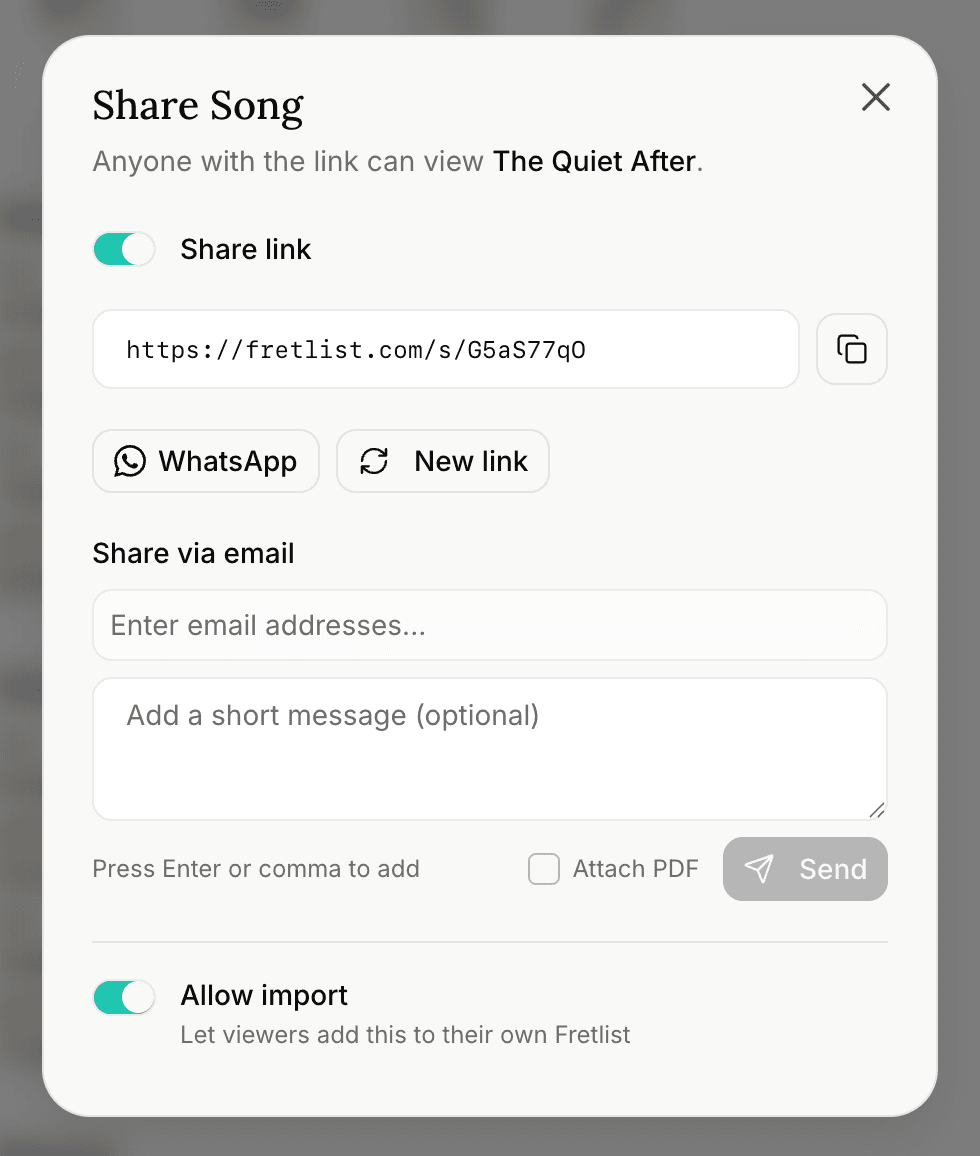
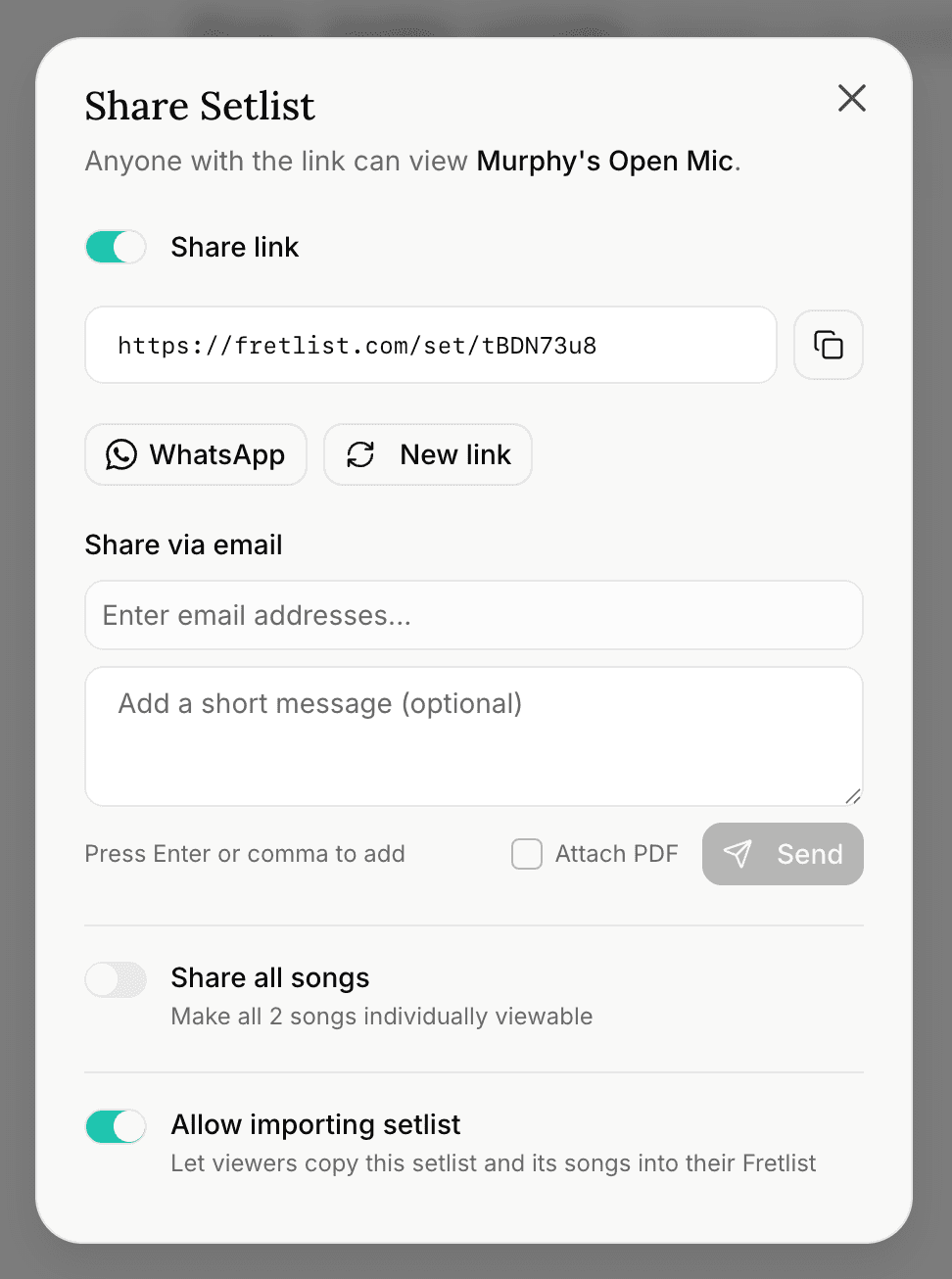
The dialog (titled Share Song or Share Setlist) opens with a single switch at the top. Turn on Create share link and the rest appears:
- The public link in a read-only field, with a copy button beside it.
- A WhatsApp button that opens a prewritten message with the link.
- New link, which regenerates the link and retires the old one (see Manage or stop sharing).
- Share via email: add one or more addresses, an optional short message, then Send. Recipients get the link, and optionally a PDF (below).
- The import switches at the bottom (see Let people import it).
Attaching a PDF
In the email section, tick Attach PDF to send a rendered PDF along with the link. It is not a rough export: it is the same styled output the Print & Export window produces, built from your saved Print & Export settings (page size, columns, text size, high contrast, and what to include). For a song that is the chord sheet; for a setlist it is the gig running order. Set those defaults once in Print & Export (the Save as default button) and every shared PDF follows them.
Let people import it
By default a link is view-only. To let people copy it into their own library, turn on the import switch near the bottom of the dialog.
For a song: turn on Allow import ("Let viewers add this to their own Fretlist").
For a setlist there are two separate switches, and they do different things:
- Share all songs makes every song in the setlist individually viewable, so recipients can open and play each one on the shared page (this is also what unlocks Play Mode for them). It does not affect importing.
- Allow importing setlist ("Let viewers copy this setlist and its songs into their Fretlist") lets people copy the whole setlist, with its songs, into their own Fretlist. Importing works even if you have not turned on Share all songs.
What people can do with a shared link
No account is needed to view. On a shared page, anyone can:
- Read the chord sheet in your chosen view.
- Transpose and capo a shared song on the fly, without changing your original.
- Open Play Mode for a full-screen, stage-ready view. For a setlist, Play Mode appears once you have turned on Share all songs.
- Print or export the song, or the setlist's running order.
- Import it into their own Fretlist, if you allowed it (a free account is needed to import).
Import a shared song or setlist
This is the band flow: you share, your bandmates import, everyone has the same charts. Recipients open the link, then:
- A shared song: open the ... menu on the shared page and choose Add to library. If they already have that song, a banner reads "This song is already in your Fretlist" with a link to open their copy.
- A shared setlist: use Import setlist and songs, in the ... menu and in a card below the setlist titled "Add this setlist to your Fretlist." One click rebuilds the whole setlist in their library, with the sets, order, keys, and capos intact.

If someone is not signed in when they import, they are sent to sign in or create a free account, then brought right back and the import finishes on its own.
Songs you already have are reused
When someone imports a setlist, Fretlist checks each song against what they already own. Songs they have are reused, not duplicated. Only the missing ones get copied in. Matching is the same smart matching the bulk importer uses, so small differences like a leading track number, an accent, or a "chords" label still count as the same song.
You stay in control per song: if you turn off import on an individual song, it is skipped when someone imports the setlist (unless they already own it).
Re-importing
If someone imports a setlist they already have (same title and date), Fretlist asks first with a You already have this setlist prompt. They can Open existing to jump to their copy, or Import a copy to bring in a fresh one. No accidental duplicates.
Manage or stop sharing
Reopen the dialog from the ... menu (it now reads Shared) any time:
- New link generates a fresh link and immediately stops the old one from working. Use it if a link has spread further than you wanted.
- Turning the top switch off disables sharing. For a setlist that has shared songs, Fretlist asks whether to also unshare those songs (an Also unshare N songs checkbox) before it turns the link off.
Working offline
Sharing needs a connection. The Share menu item and everything in the dialog (creating a link, WhatsApp, email, New link, the import switches) are disabled offline. Viewing and importing a shared page also need a connection.