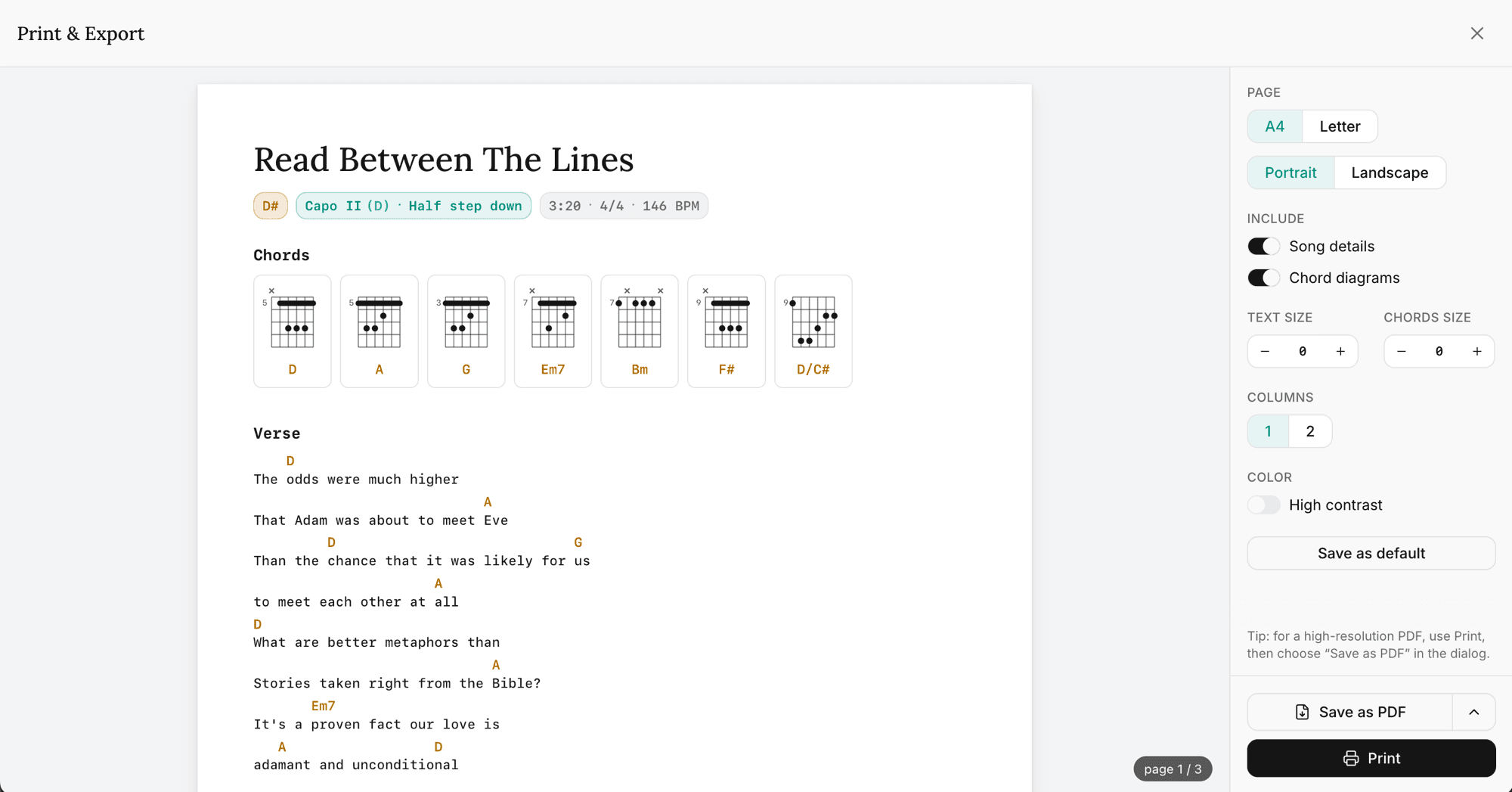
Every song and setlist has a dedicated Print & Export window: a live, full-page preview on one side and the controls on the other. Change a control and the preview re-paginates, so you see exactly what you'll get before you print or save a page.
Opening Print & Export
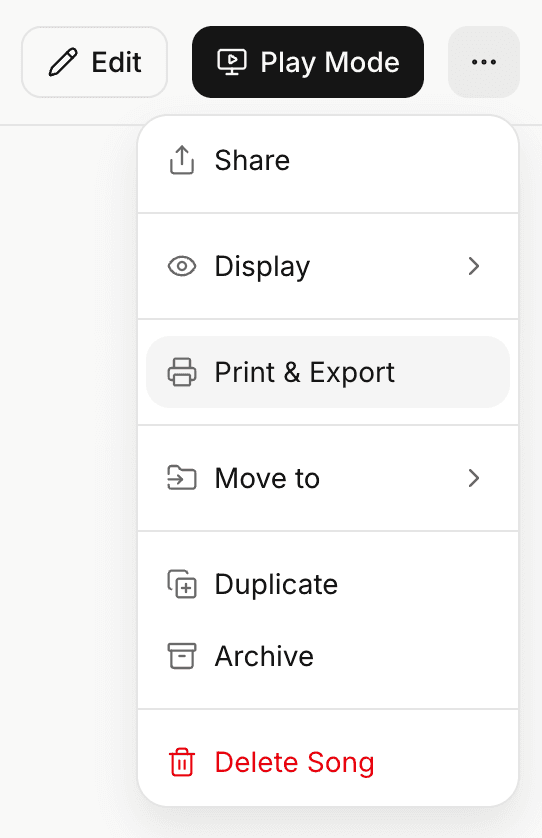
Open any song or setlist, then open the ... menu (the More actions button) and choose Print & Export. The window opens full-screen over the app, so you don't lose your place. Close it with the × in the top-right of the header or press Esc.
The preview
The center of the window is a live, fit-to-width preview of the printed pages, with a page x / y badge in the bottom-right corner. It's the real output: the same monospaced chord sheet, chord diagrams, page breaks, and colored keys you'll see on paper.
On desktop the controls sit in a rail on the right; on a phone they stack below the preview, with the Print and Save buttons pinned to the bottom.
Two ways to get a PDF
The two buttons at the bottom produce different kinds of PDF.
Save as PDF captures the preview exactly as you see it and downloads it in one click. It's a raster copy, so it switches off above 20 pages and isn't available offline. On iPhone and iPad it opens the system share sheet so you can save to Files or send it on.
Print opens your browser's own print dialog: the highest-quality, vector path, and it works offline. From there you can print on paper or choose your browser's own "Save as PDF" for the sharpest file.
Other formats
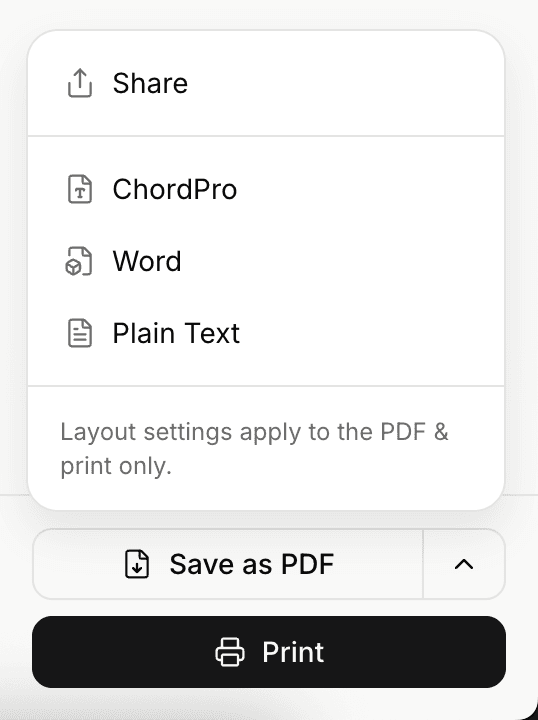
Click the small chevron next to Save as PDF for the editable, re-importable formats, plus a Share option that emails the PDF. For a single song: ChordPro (.pro), Word (.docx), and Plain Text (.txt). These carry their own structure, not the page layout (a note in the menu says as much). The menu is online-only.
Emailing the PDF
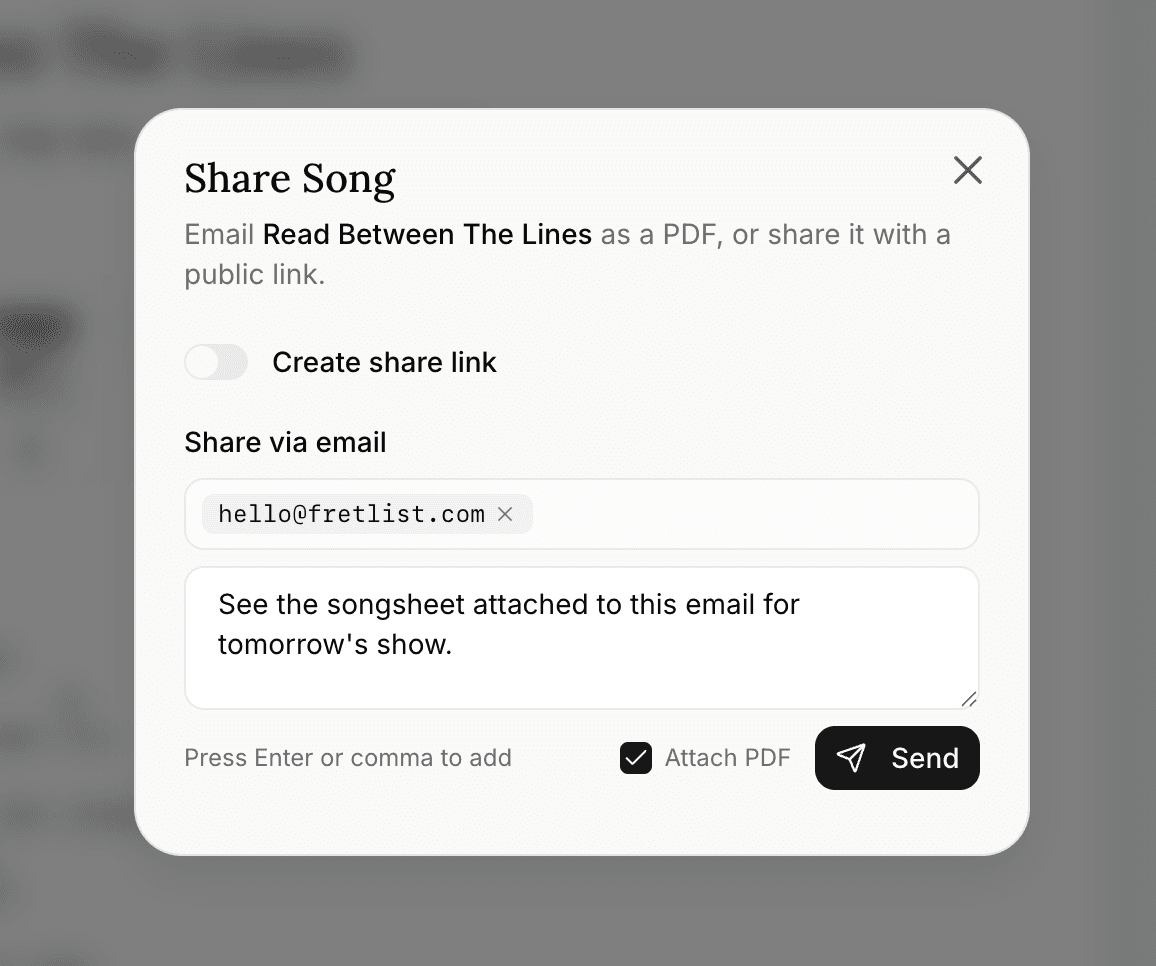
Choose Share from that menu to email the song (or setlist) with its PDF attached. The dialog opens with Attach PDF already ticked, and the attachment is the same styled render you see in the preview (for a setlist, that's the running order). Add one or more email addresses and an optional short message, then send. You can also create or copy a public link from the same dialog if you'd rather share that way.
Adjusting the layout
The controls re-flow the preview live (a small spinner sits by a control's label while it re-paginates).
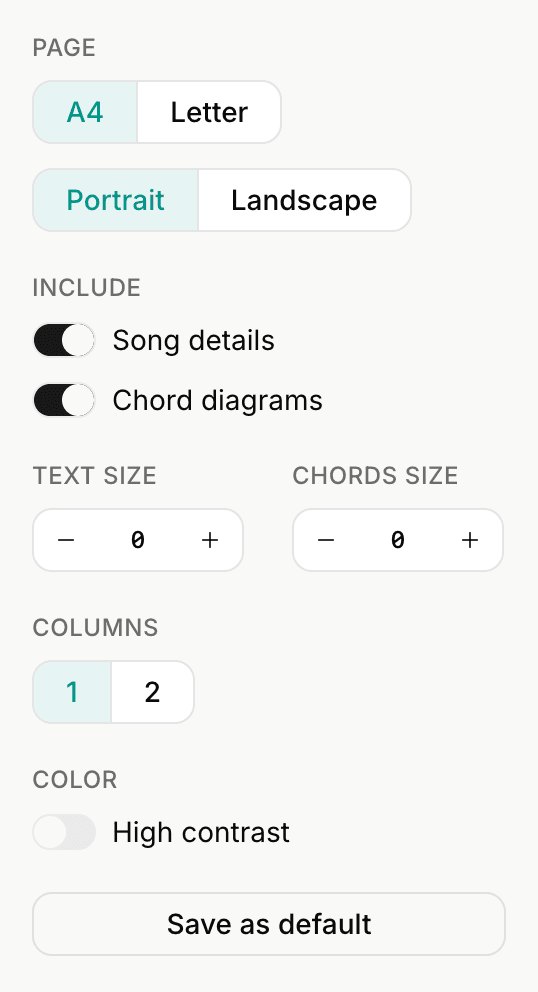
- Page: A4 or Letter, Portrait or Landscape.
- Include: Song details (key, capo, tempo, and the rest) and Chord diagrams (only offered when the song has chords).
- Text size and Chords size:
−/ value /+steppers; click the value to reset to 0. Chord size only shows when diagrams are on. - Columns: 1, 2, or 3. Three is landscape-only; portrait offers 1 or 2.
- Color: High contrast prints chords and keys in solid black instead of amber, and a song's note blocks on light gray instead of cream, for clearer photocopies and low-ink printing. A Word export follows it too.
Printing a setlist
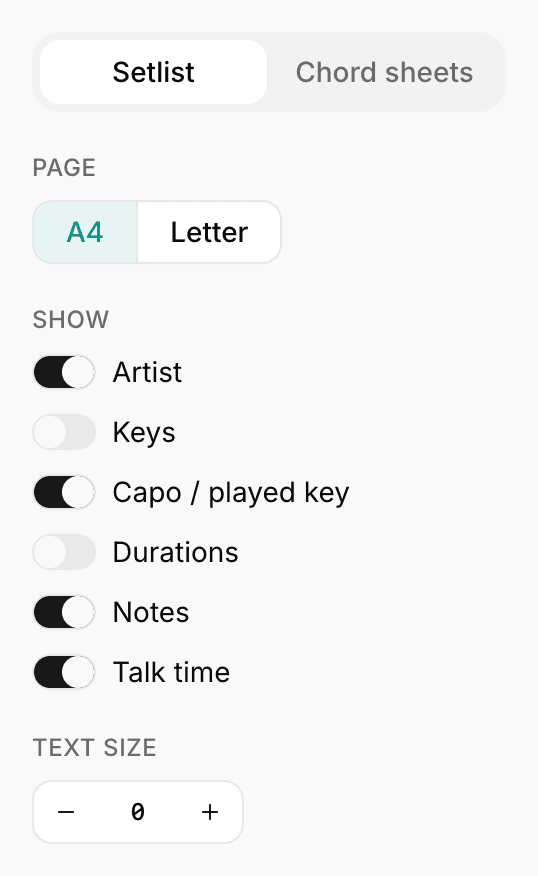
A setlist adds a pair of tabs at the top of the controls for what to print:
- Setlist (the default): the gig running order, with the details you choose to show. Always portrait, always black-on-white.
- Chord sheets: a booklet of every song's full chord sheet, one per page, using the same song controls above.
In the Setlist tab, a Show group matches the print to what's on screen: Artist, Keys, Capo / played key, Durations, Notes, and Talk time (Durations and Talk time only appear when the setlist has durations turned on). With more than one set, a Layout group adds Each set on new page.
In the Chord sheets tab, large setlists preview only the first couple of songs to stay responsive. Print or Save as PDF expands to the full set first (a brief "Preparing all N songs..." state), then produces the complete document. Its export menu bundles every song into a single .zip (ChordPro, Word, or Plain Text).
Saving a default
Set the window up the way you like it, then click Save as default (the last control, below the layout options). Those settings become the starting point for every Print & Export window, on every device, in real time. When the current settings already match, the button reads Current default. Saving a default needs a connection.
Working offline
Print keeps working with no connection (the browser dialog is built in, and you can save a PDF from there). The one-click Save as PDF, the file exports, Share, and Save as default all need a connection and are disabled offline.
Related
- Getting the most out of Frets: the chord diagrams that show up in your printed sheets
- Chords over Lyrics and ChordPro: the two editor formats your exports are built from
- Organizing songs with folders