Every song is built from a few layers: the lyrics, the chords above them, chord grids, and tab. You can show or hide each one on its own, so a chart looks the way you want to read it.
Where to find it
Open a song, then the ⋯ menu in the top right, and choose Display.
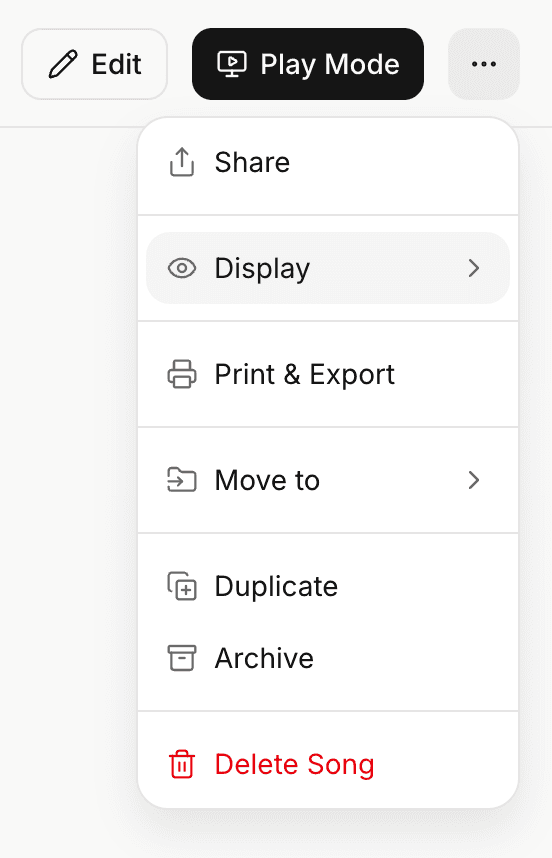
You get seven switches:
- Sections: the Verse, Chorus and Bridge headings
- Lyrics: the words
- Chords: the chord names above the words, and chord-only lines
- Grids: chord grids (bar-and-chord charts)
- Tabs: tab notation
- Comments: the
{comment: …}lines in a ChordPro song, like "Capo 2" or "repeat twice" - Notes: the My notes card, in the song and in Play Mode. Band workspaces only, where the notes live
Turn any of them off and the sheet updates straight away.
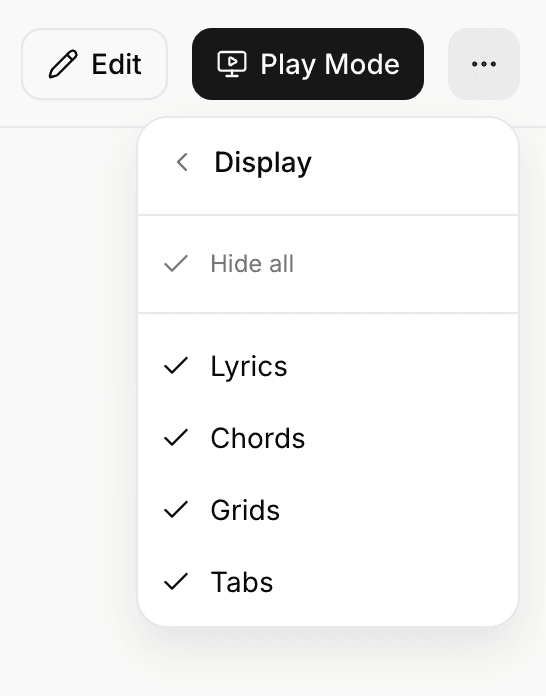
A chords-and-grids only view
Turn Lyrics off and you get a music view: the chords stay exactly where they fall over the line, the grids stay, and the words drop away. This is the one to reach for if you read charts rather than sing from the sheet, or you want a clean chord map of a song.
Turn Chords, Grids, and Tabs off instead and you are left with a plain lyric sheet. Turn Sections off as well and even the headings go, which is the tidiest a sheet gets.
Hiding something never leaves a hole where it was: the blank lines around it close up, so a song with its chords off reads as a lyric sheet rather than a lyric sheet full of gaps.
Show all and Hide all
The top row turns everything on or off at once. Show all brings all seven back. Hide all turns all seven off, including the lyrics, and leaves you with an empty page if that is what you want.
Nothing is locked on. If you play from your own notes and want nothing else on screen, you can switch all seven off. Tapping any switch brings that part back.
The same switch is in Play Mode. Open the gear, and it is the first row of the Show section.
One setting for every song, or one per song
Normally these seven switches apply to all your songs. Hide the lyrics once and they stay hidden on every song, on every device you sign in to. Most people want this: if you play from the chords, you never want to see the words.
Some people want it the other way, so that one song can show its tabs and no other song does. To do that, go to Settings > Features > Show / Hide and turn on Set show / hide per song. Each song then remembers its own five switches.
You can switch between the two whenever you like. Your per-song settings are kept either way, so turning Set show / hide per song back on brings every song back exactly as you left it.
It follows you everywhere
The setting syncs across your devices, so a song you set to a music view on your laptop opens the same way on your phone. It also carries into Play Mode (open the gear, then the Show section) and into Print & Export, so what you print matches what you see.