The editor is where you write a song, in either of Fretlist's two formats. It colors the sheet as you type and can write the syntax for you, so your attention stays on the words and the chords instead of on where a brace goes.
For the formats themselves, see Chords over Lyrics and ChordPro.
Colors as you type
Everything you write is colored as you go:
- Chords take your chosen chord color, whether they sit inline like
[C#m]or bare on a chord line. The chord name in a{define: ...}takes it too, since that is the part you scan the line for. - Section headings and directives are teal, so the shape of the song stands out from its words.
- Bracketed text that is not a chord, like
[x4],[N.C.]or[*Break], is an annotation: italic, in the lyric color. - Lyrics stay in the normal text color, and so does the fret data in a definition.
The brackets are not what decides the color. Whether the text names a chord is.
These are the same colors the finished chord sheet uses, so a song looks the same while you write it as it does when you play it.
![A ChordPro song in the editor: a define line whose chord name is amber and whose fret data is dim, teal grid and verse directives, amber inline chords, an italic [*Break] annotation, and plain lyrics](/_next/image?url=%2Fdocs%2Fsong-editor%2Fcoloring.png&w=3840&q=75&dpl=dpl_2nunEmUET3wDmZ4JSuXvCrRiBqFF)
The Sections and Directives rail
Above the writing area is a row of buttons that insert syntax at the cursor, so you never have to remember how a directive is spelled.
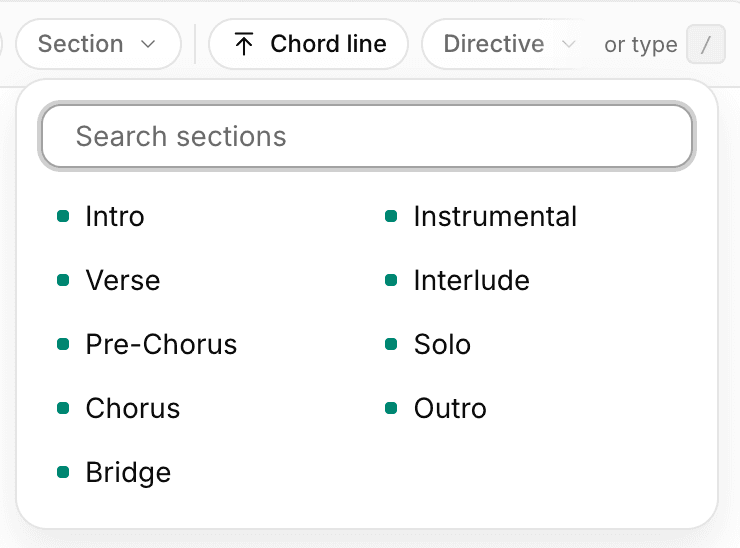
The first chips are section headings, and Fretlist puts the ones this song already uses first, so a song with three verses keeps Verse within reach. The full set is Intro, Verse, Pre-Chorus, Chorus, Bridge, Instrumental, Interlude, Solo and Outro, and the Section chip opens all of them with a search box.
After those come the things you can drop into a song:
- Chord: an inline
[ ]chord, ready to type into - Chord line: a chord line above the lyric you are on
- Chords table: a
[Chords]block for chord diagrams - Chord definition: a
{define: ...}for a custom voicing - Comment: a comment line
- Note: a performance note
- Chord grid: a grid block, named and ready to fill
- Repeat bars: repeat marks inside a grid
- Tab block: a tab staff
- Repeat chorus: a reference back to the chorus you already wrote
Which of these show as chips depends on the song and the format you are in. The Directive chip opens the full list, and every chip has a tooltip saying what it writes. On a wide window the rail ends with a quiet or type / reminder.
The rail wants a wide window. It appears from desktop widths up, and is off on phones and narrow tablets where the keyboard wants the bottom of the screen.

The slash menu
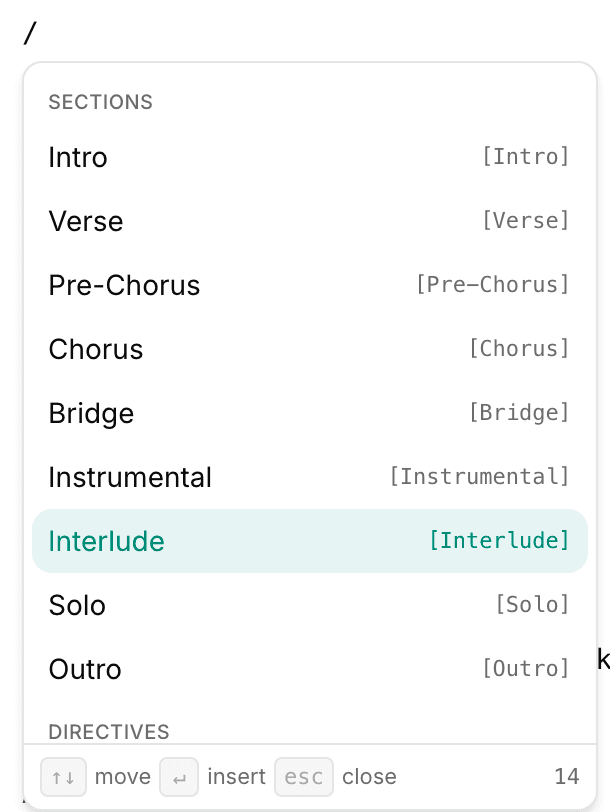
On any device, type / as the first character on a line and a menu opens under it, grouped into Sections and Directives. Keep typing to narrow it to the rows that start with what you type: /r finds Refrain, /def finds Chord definition. The first match is highlighted, so ↵ usually picks the one you meant. Tap a row to insert it, or with a keyboard:
- ↑ ↓ move through the list
- ↵ inserts the highlighted item
- Esc closes the menu
Every row shows the text it will write, so you can see what you are about to insert before you commit to it.
The slash only counts at the start of a line. Anywhere else it is just a slash, so a chord like G/B never opens the menu by accident. On an empty line the editor shows a faint Press / to add (or Type / to add on a touch screen) as a reminder.
Tab moves between fields
Tab is navigation in the editor rather than indentation, and it does whatever is most useful where the cursor is.
On a chord line, Tab jumps to the start of the next word in the lyric below, padding the chord line out if it is shorter than that column. Shift Tab goes back. Placing the second chord costs the same as the first.
On a chord definition, Tab walks the fields in order: the chord name, the base fret, then each fret. Each one arrives selected, so filling in a voicing is Tab, type, Tab, type.
A definition you insert is not blank. Fretlist looks at which chords the song plays, picks one that has no shape yet, and fills in the usual fingering for it. The chord name comes back selected, because that is the one part it had to guess.
In a chord grid, Tab tours the block in reading order: the name first, then every cell of every row, each selected so typing replaces it. Tab past the last cell parks the cursor at the end of the block. Shift Tab walks back the same way.
Expand
Expand hides the title, artist and details rows and gives that space to your lyrics. Expanded, those rows fold into one line that still says which song you are in. Click that line to bring them back, or use the Close button where Expand was.
Press F in an editor to fold the sidebar away for more room still, and F again to bring it back.
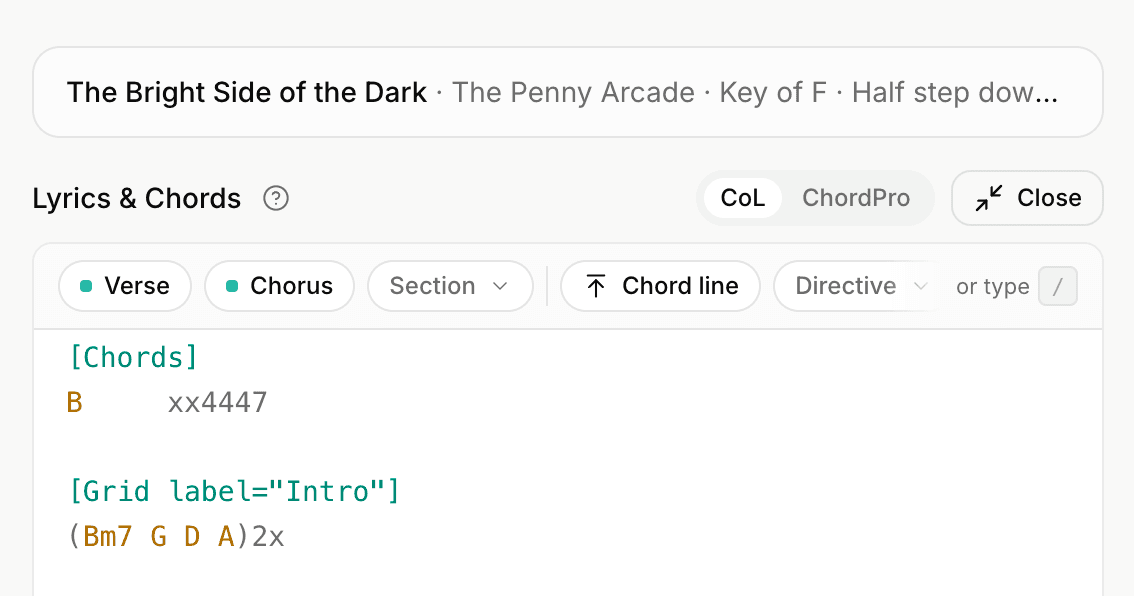
Expand is a desktop control. On a phone the field is already the screen.
Links in a song
A web address you write into the body of a song becomes a link you can tap. Paste the backing track, the tutorial you learned it from, or the tab you transcribed, and it opens in a new tab so you never lose your place in Fretlist.
Both https://youtu.be/... and a bare www.justinguitar.com/... are recognized. Nothing else is: a plain fretlist.com in a lyric stays a lyric, because song words are full of things that look like addresses and a link where you wrote a word is worse than no link at all.
A setlist's description works the same way, so a link you put there is tappable on the setlist page and on a setlist you have shared. That is the natural home for the reference recording everyone in the band needs. The short note you attach to a single song stays plain text: it sits inline in a row you scan at a glance, and a link in there gets in the way more than it helps.
Two places handle links differently on purpose. Play Mode leaves out any line or comment that holds a link: a tap there belongs to the song, opening a browser mid-set is the last thing you want, and a link you cannot follow is only clutter on the stand. And a line that has chords sitting above it stays plain, so the chords keep their exact place over the words.
Change the key
Pick a new key in Song Details and Fretlist asks what you mean:
- Transpose moves every chord to the new key. A song in G set to F gets F, Bb and C where it had G, C and D, inline chords and chords above the lyrics alike, and the chords stay in their place over the words. Until you save, Undo on the message that appears (or one Cmd+Z) puts the whole sheet and the key back.
- Only change the key leaves the chords as they are. Use it when the sheet was already in that key and only the label was wrong.
Your own chord shapes move with the song where they can. A barre shape with no open strings slides along the neck under its new name, so a G barre at the third fret becomes an F barre at the first. A shape with open strings cannot slide, so the new chord uses the standard shape. Saving removes the old one, as it does any shape for a chord the song no longer has. Undo before you save brings it back.
It only asks when there are chords to move. A first key on a new song, a key that uses the same chords (G and its relative minor Em), or a sheet without chords just changes the label.
Changing the key here changes the song itself, so in a band it changes for everyone. To play a song in another key for one gig, set the key on the setlist instead. To play it in another key just for you, use the transpose buttons on the song: in a band they always change your own key, also when you opened the song from a setlist. See Band key, set key, your key.
Keys that were already chosen stay put when you save. If a setlist played the song in G, or you had transposed it to G yourself, it is still in G afterwards, for every member of the band. Where nobody chose a key, the song plays in its new key.
Two formats, one song
The tabs above the field switch between Chords over Lyrics and ChordPro. The first shows as CoL when the row is too narrow for its full name.
Switching converts the song, and the lines you did not touch come back exactly as you wrote them. A heading typed as Verse: stays Verse:, and one written as = Chorus stays that way too, rather than being rewritten into a form you did not choose.
On a phone
The phone editor is the field. It scrolls like any other page and the keyboard slides over it. The Song Details bar tucks away as you scroll down and comes back as you scroll up, and tapping into the lyrics puts it away until you are done writing. Tapping the song name drops a panel from the top bar for the title and artist, and the CoL / ChordPro switcher rides the corner of the field so the format is always one tap away.
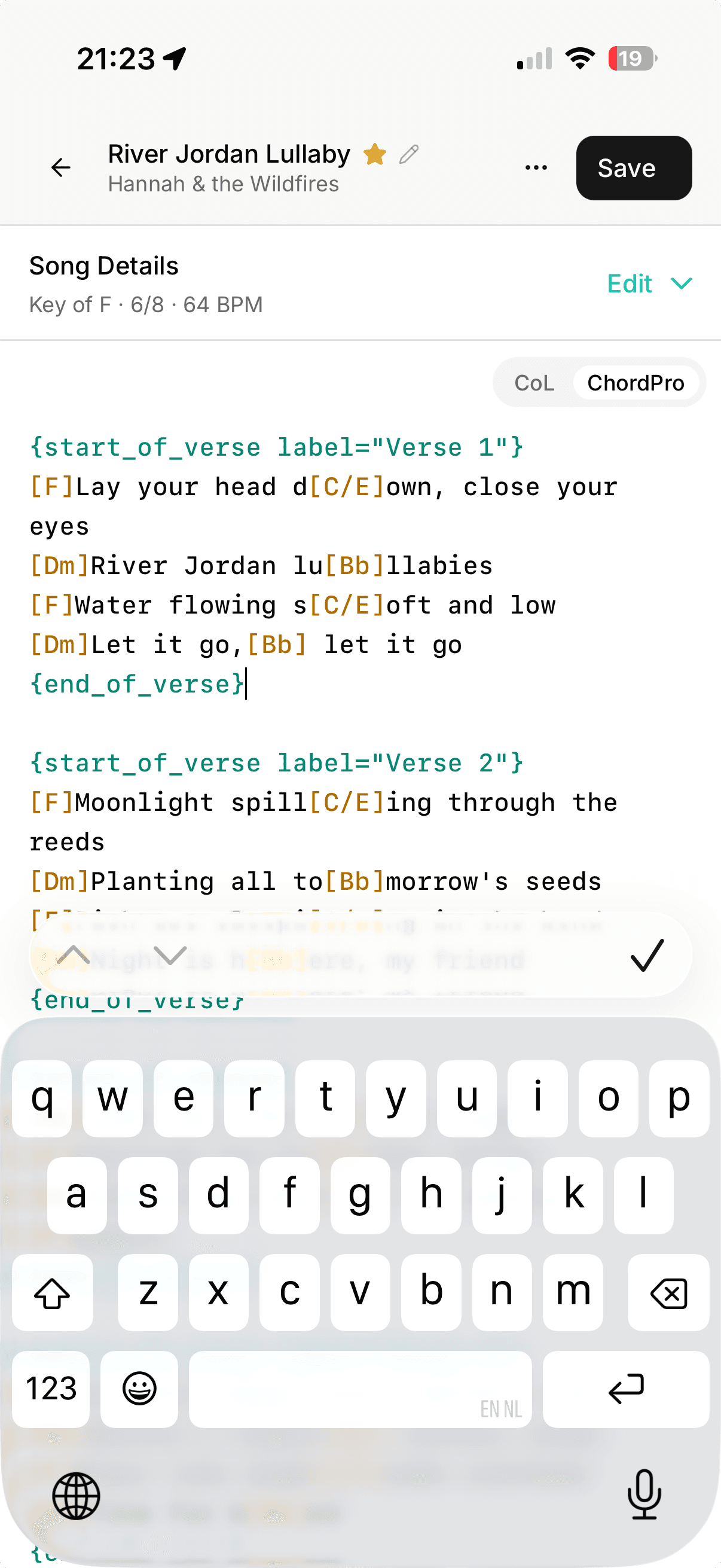
The rail is off here. The slash menu is the way to insert a section or a directive on a phone: type / at the start of a line and tap what you want.