A setlist is the running order for a gig, a rehearsal or a jam: the songs you will play, in order, split into sets if the night has more than one. It lives next to your songs, works offline, and opens in Play Mode as one continuous set.
Create a setlist
Open the + menu (above the song or setlist list, or in the top bar) and choose New Setlist. The dashboard has a New Setlist button too.
The editor asks for:
- Title: the only required field. Save stays disabled until there is one.
- Location: the venue, or anything else that tells you where.
- Event Date: the date of the gig.
- Notes: anything about the gig as a whole. They show at the bottom of the setlist, and links in them can be clicked.
Click Save (or press Cmd Enter, Ctrl Enter on Windows) to save, or Cancel (Esc) to leave. If you leave with unsaved changes, Fretlist asks before throwing them away.
To change a setlist later, open it and click Edit, or press E.
Add songs
Under each set, click Add Song(s) (or Add songs to Set 2 once the set has a name). A picker opens with your library:
- Tap songs to select them. Each selected song gets a number, and that is the order they are added in. Tap again to deselect.
- Search, sort and filter to find songs quickly. Sort by A to Z, Recently added, Most played (how many setlists a song is in) or Date (new to old). Filter by the same groups as your library, or by key.
- A small check mark means the song is already in this setlist. You can still add it again, for a song you play twice.
Click Add to put the selected songs at the end of the set.
In the editor, Cmd V pastes songs you copied from another setlist (see Copy songs between setlists).
Reorder and remove songs
In the editor, drag a song by its grip handle (the dotted icon on the left of the row) to move it up or down. Drag it onto another set to move it there. On a phone, only the handle starts a drag, so you can still scroll the list by swiping anywhere else.
The × at the end of a row removes the song from the setlist. The song itself stays in your library.
Split the night into sets
Click Add Set at the bottom of the editor for a second set, a third, an encore. The first time you add one, both sets are named Set 1 and Set 2; type over the Set title to call them anything, like Encore.
Next to each set title:
- The up and down arrows move the whole set earlier or later in the night.
- The notes icon opens or closes the notes on every song in that set at once.
- The bin removes the set. If it has songs, Fretlist asks first.
A set can stay empty for now. It shows on the setlist as No songs in this set yet, so the shape of the night is there before the songs are.
On a setlist with more than one set, each set header gets its own Play button, so you can start the night at set 2.
Time your sets
Turn on Show durations in the editor to work with times.
- Each set gets a Duration field: the time you have for it, in minutes.
- The set's running total adds up the duration of each song (set on the song itself) plus any talk time. Next to a target, a bar fills as the set grows. It turns amber past 90% and red when the set runs over, with how much over it is.
- When you add songs to a set that has a target, the picker shows the time remaining (or Set is full), and dims songs that would no longer fit.
Talk time is the minutes you spend talking after a song: an intro, a story, a tuning break. Open a song's notes (below) and enter it in the talk field. On the setlist it shows as a small divider between that song and the next.
Add a note to a song
The note icon on a song row in the editor opens a notes field for that song in this setlist: "capo 3 for this one", "start with the chorus", "Lisa sings". The icon turns teal when a song has a note.
Notes belong to the setlist, not the song, so the same song can carry a different note in every setlist. On the setlist they show in italics under the song.
Choose what the setlist shows
On the setlist, open the ... menu and choose Display. Switch each one on or off:
- Artist
- Keys (with the instrument you read the song on)
- Capo / played key
- Durations (only when the setlist has durations turned on)
- Notes
- Talk time
Hide all and Show all flip them together. These choices are remembered on this device and apply to every setlist.
Change the key for one set
Every song row can have its own key, for "we play it in A in this set". The song itself keeps its key; only this row moves.
On the setlist (viewing or editing), click a song row's key badge. It turns into a - key + stepper:
- - and + move the key a half step.
- Click the key in the middle to reset it to the song's own key.
- Press Esc, or click away, to close it.
On the setlist page the change saves right away and needs a connection. In the editor it is saved with the rest of the setlist when you click Save.
When a row's key differs from the song's own key, the badge gets a purple dot, and its tooltip names the song's key. A song without a key shows the change as a number of half steps, like +2.
The key belongs to the row, so the same song can sit in two setlists, or two sets, in two different keys. Open a song from the setlist and you read it in that row's key; Play Setlist, the printout and a shared link use it too.
In your own library
In a personal workspace there is only one key to worry about. Open a song from a setlist and the + and - on the song change the key for this setlist, not the song. A note at the top of the song says so (Key is set to A in Friday gig. The song is originally in G.), with a Reset to G link to go back to the song's key.
Open the same song from your library (the sidebar) and the + and - change your own key for it, which leaves your setlists alone.
In a band workspace
In a band, the set key is shared: everyone in the band sees the same key on the setlist.
- Only leaders and members can change it, and only on the setlist rows (viewing or editing). Viewers and guests see the set key but cannot change it.
- The + and - on a song always change your own key, never the band's. That holds when you opened the song from a setlist too.
- Your own key wins over the set key. If you chose your own key for a song, you keep reading it in that key in every setlist, even when the band moves it. The setlist row then shows your key with a purple dot and a Transposed from A style tooltip, and the song view and Play Mode show a badge like Transpose -2: how far your chart sits from the band, so you know what to set on your instrument.
- Reset on the song puts you back on the band's key.
The band workspace guide explains the three keys (band key, set key, your key) in full.
Play a whole setlist
On the setlist, click Play Setlist (the play icon on a phone), or press P. Play Mode opens on the first song and carries the whole set:
- Move between songs with the chevrons, the song counter, a swipe, the arrow keys or a foot pedal.
- At the end of a song, a pill offers the next song, on a tap or on a countdown.
- On a night with more than one set, the counter names the set you are in (Set 2 · 1/12), and the end of a set lands on a Break screen that names the next set and the song that opens it. Start Set 2 carries on.
Tap a song on the setlist and then open Play Mode, and it carries the set from that song on. Each set's own Play button starts the night at that set.
Playing more than one device? Turn on Follow Me and the tablet on the stand follows your phone, song by song and set by set.
The Play Mode guide covers auto-scroll, the metronome and everything else on the stage screen.
Print or export a setlist
Open the ... menu on the setlist and choose Print & Export (or press Cmd P). Two tabs decide what you get:
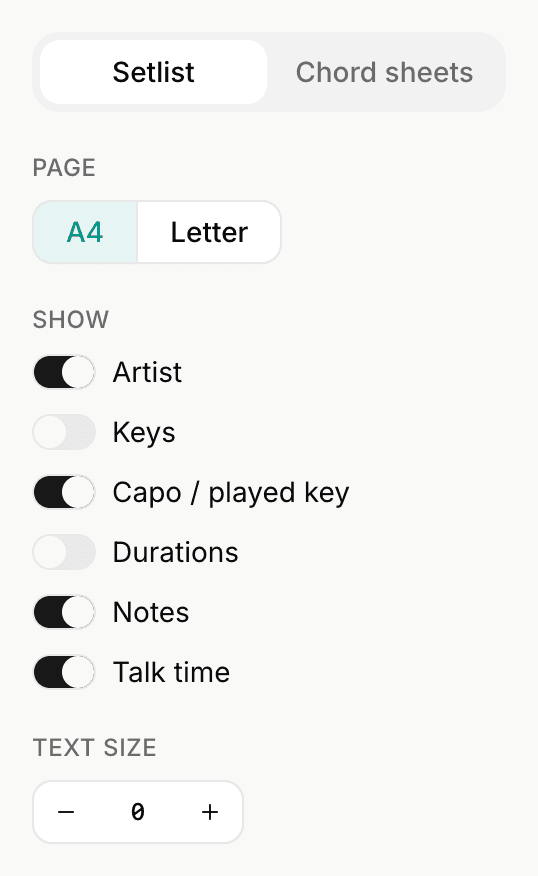
- Setlist: the gig running order, for the floor or the music stand. Choose what it shows (artist, keys, capo, durations, notes, talk time), and with more than one set, Each set on new page.
- Chord sheets: a booklet with every song's full chord sheet.
Both use the setlist's keys. See Printing and exporting for the page options and file formats.
Share a setlist
Open the ... menu and choose Share to make a public link. Anyone with it can open the setlist in a browser, no account needed. Two switches decide what else they get:
- Share all songs lets them open each song and play the set in Play Mode.
- Allow importing setlist lets them copy the setlist and its songs into their own Fretlist.
Shared setlists show the setlist's keys. The full story, including WhatsApp, email and stopping a link, is in Sharing.
Duplicate, copy songs, delete
All three are in the setlist's ... menu, and in the menu on a setlist in the sidebar.
- Duplicate makes a copy named Copy of the original, with the same sets, songs, notes, talk time and keys, and opens it in the editor. The location and date start empty, ready for the next gig. Cancel the editor and the copy is not kept.
- Delete Setlist removes the setlist after asking. The songs in it stay in your library.
Copy songs between setlists
Copy songs copies every song in the setlist, with its sets, notes, talk time and keys. Open another setlist's editor and choose Paste songs from its ... menu, or press Cmd V. If that setlist already has songs, choose Replace all songs, Add to existing songs or Add as new set. Cmd Z undoes the paste.
Find a setlist
The Setlists tab in the sidebar lists them all. Upcoming gigs come first, soonest at the top, then setlists without a date, then past gigs, most recent first. Once you have past gigs, headers mark Upcoming, No date and Past, and past gigs are dimmed.
Search matches the title and the location.
Offline
Setlists sync to your device like your songs. With no connection you can still open every setlist, open its songs, and play the whole set in Play Mode.
Creating, editing, sharing, duplicating and deleting setlists, and changing a set's key, need a connection. Printing from the browser's print dialog keeps working.
In a band
A band's setlists are shared with the whole band. Leaders and members can create and edit them; viewers and guests can open and play them. Guests cannot print or export. See band roles for the full list, and the band workspace guide for how keys and Copy to workspace work.
Related
- Play Mode: the full-screen stage view a setlist plays in
- Follow Me: one device leads, the others follow
- Printing and exporting: running orders and chord-sheet booklets
- Sharing: public links and importing a shared setlist
- Band workspace: band key, set key and your own key