Fretlist has an MCP server. MCP (Model Context Protocol) is the standard way AI apps like Claude and ChatGPT talk to other tools. Once you connect, the agent you already use can read your songs and setlists and make changes for you: clean up a messy chord sheet, fix section labels across twenty imports, or put together a setlist of everything in a folder.
The agent runs on your own Claude or ChatGPT plan. Fretlist does not see the conversation, only the tool calls the agent makes on your behalf.
What a connected agent can do
- Read your songs with their full chord sheets, your setlists in running order, your folders, and the bands you belong to.
- Edit a song: the sheet itself, the title, artist, key, capo, tuning, instrument, tempo, time signature, status, favorite, and folder.
- Add songs, either directly or by pasting text through the same importer the app uses, so tab-site boilerplate is stripped and a title that already exists is refused.
- Create and edit setlists: the name, venue, date and notes, and add songs to a set.
An agent can do what you can do in the app, and nothing more. In a band it has the role you have. On the Free plan it hits the same caps you do, and a refused add says so.
An agent cannot delete anything. The tools have no delete, and the key an agent holds is refused for deleting songs, setlists and folders even outside the tools. Deleting stays a thing you do yourself, in the app. An agent can still overwrite a sheet with update, so read the result of a cleanup before the gig.
How to connect
Every app connects to the same address: https://fretlist.com/api/mcp. You also find it in Settings, Features tab, in the Connected apps card, with a button to copy it.
The steps for each app are below. Any other app that supports MCP over HTTP works the same way: give it the address, sign in, allow.
Claude Code
Run this once in a terminal:
claude mcp add --transport http fretlist https://fretlist.com/api/mcp
Then type /mcp in Claude Code and pick Fretlist to sign in. Your browser opens the Allow page.
Claude
These steps work on claude.ai and in the Claude desktop app. Custom connectors need a paid Claude plan. Open Settings, then Connectors, choose Add custom connector and paste https://fretlist.com/api/mcp. Click Connect and allow access in the page that opens.
ChatGPT
In a new chat, click Plugins below the message box, then Connect plugins and Browse all plugins.
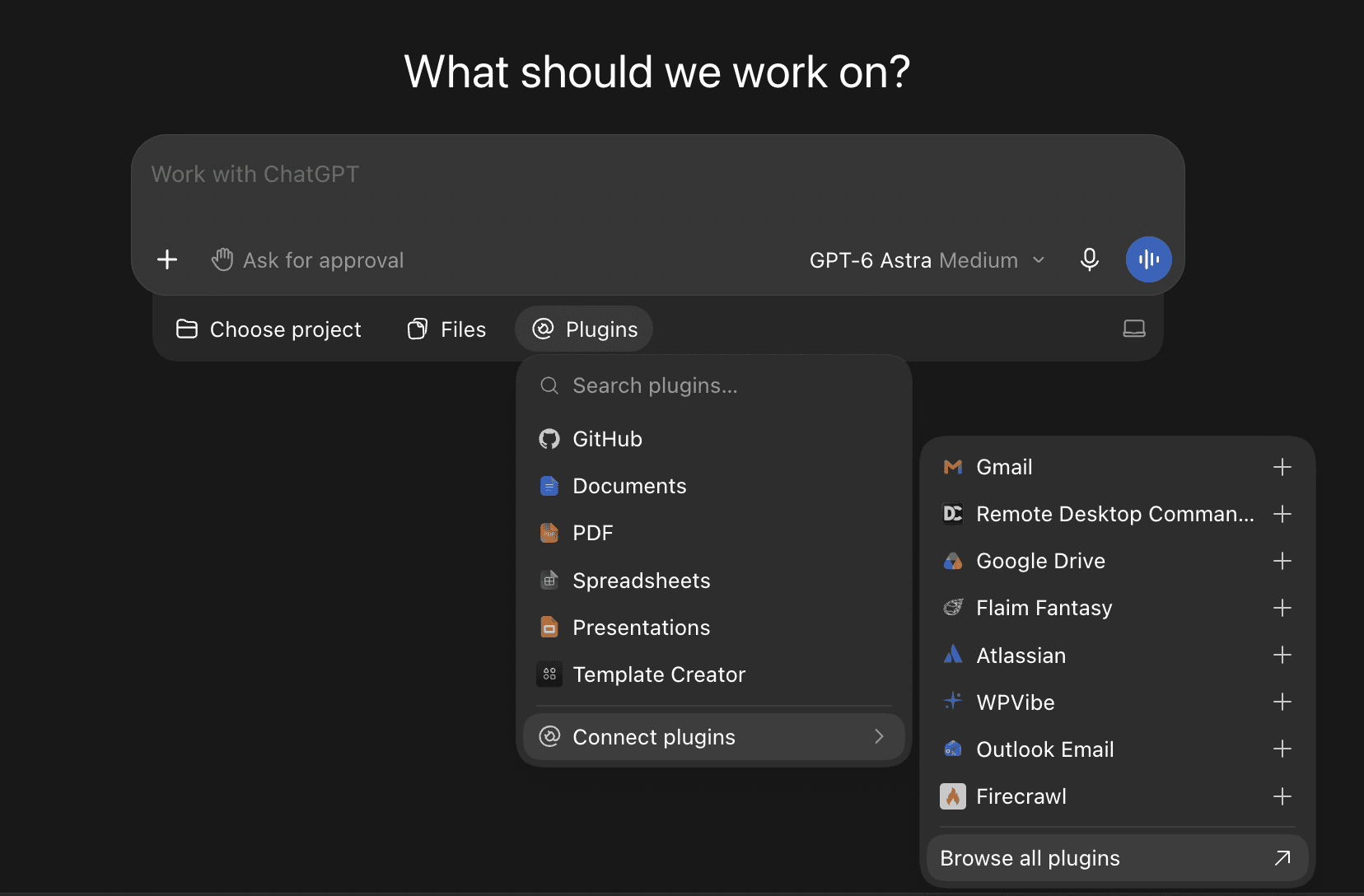
At the top right, choose Add, then Add custom MCP server. Name it Fretlist. A description and an icon are optional: you can use the Fretlist icon. Paste https://fretlist.com/api/mcp as the Server URL and leave Authentication on OAuth. Tick I understand and want to continue and choose Create as a plugin. ChatGPT then sends you to Fretlist to approve the app: choose Allow and you land back in ChatGPT, connected.

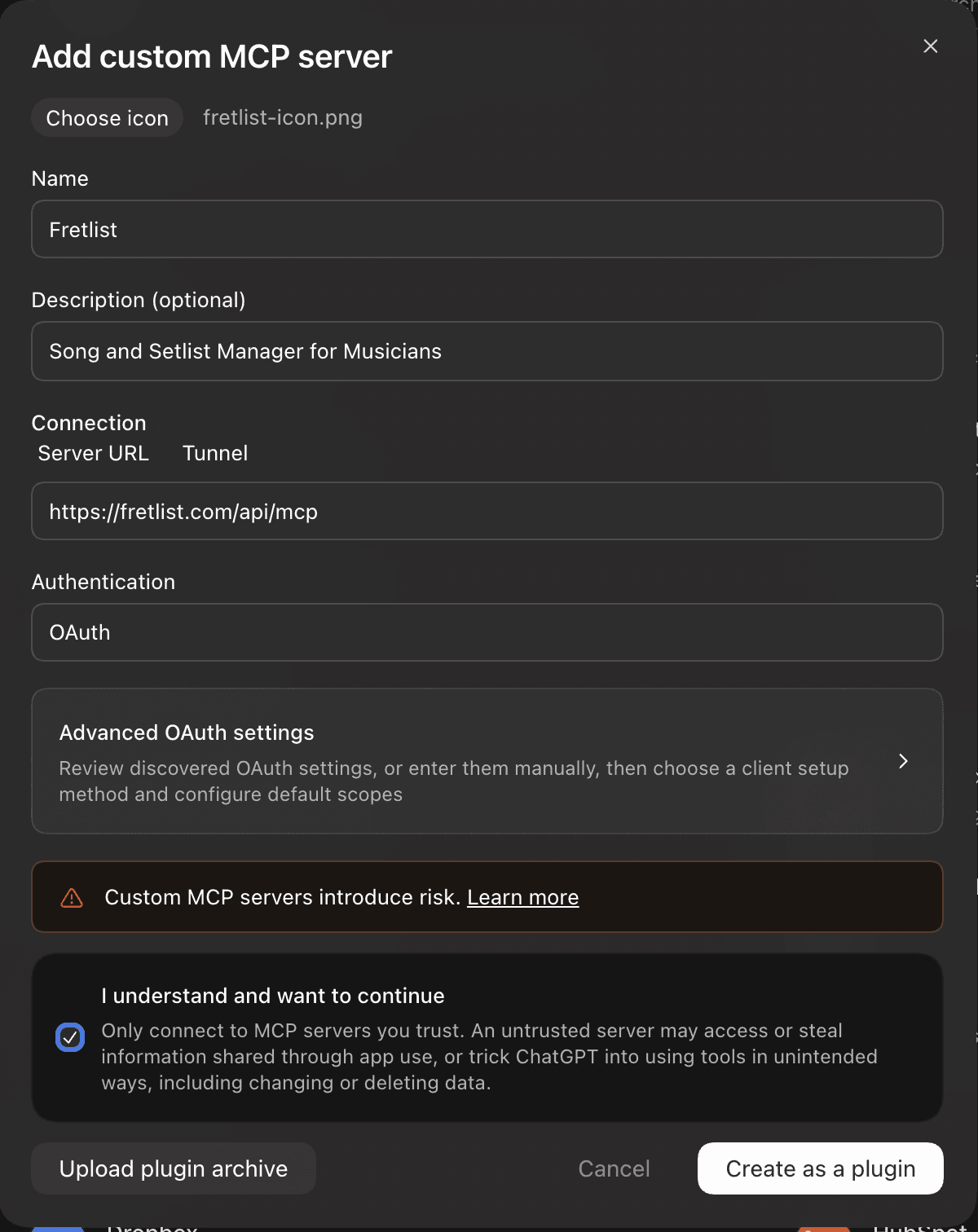
ChatGPT lists Fretlist as an app in dev mode. That is how it shows every server you add yourself, and it stays private to your account.
Cursor
Open ~/.cursor/mcp.json (or create it) and add Fretlist:
{
  "mcpServers": {
    "fretlist": {
      "url": "https://fretlist.com/api/mcp"
    }
  }
}
If the file already lists other servers, add the fretlist entry next to them inside mcpServers. To use Fretlist in one project only, put the same file at .cursor/mcp.json in that project instead.
Then open Customize in Cursor's sidebar, find Fretlist under the MCP servers and sign in when Cursor asks. Your browser opens the Allow page. After Allow, the agent picks up the Fretlist tools on its own when a request needs them.
Codex
Run these two in a terminal:
codex mcp add fretlist --url https://fretlist.com/api/mcp
codex mcp login fretlist
The second one opens your browser for the Allow page.
What the Allow page is
The page names the app that is asking, the account it gets access to, and where you are sent back to after Allow. The name is whatever the app registered itself as, so the return address is the part to check: a real Claude connect goes back to claude.ai, a real ChatGPT connect to chatgpt.com, Claude Code, Cursor and Codex to your own machine (Cursor in the browser goes back to cursor.com). Anything else gets a warning on the page. Only allow an app you started this from. Cancel sends the app away with nothing.
An agent you allowed holds a key for your account that expires on its own and renews while the app keeps using it. Sign out everywhere in Settings does not revoke it; disconnect it instead (below).
How to disconnect
In Settings, Features tab, under Connected apps, every app you allowed is listed with the date. Disconnect removes its access at once: the next call it makes is refused, even with a key it was holding. The app will ask you to allow it again the next time it tries.
Writing chord sheets with an agent
Fretlist stores every sheet as ChordPro, with chords inline in square brackets. An agent can write that, or chords above lyrics; both are turned into the stored form on save, the same way the editor does it. The format pages (Chords over Lyrics and ChordPro) are available to the agent as reference, so it does not have to guess.
A good instruction is specific about what to keep: "Clean up the chord placement and section labels in Wonderwall, keep the lyrics exactly as they are." An agent replaces the whole sheet when it saves, so read the result before the gig.
Changes show up everywhere
A change made by an agent lands in your library like any other edit: open tabs and the installed app pick it up through the normal sync, and the offline copy follows.