The dashboard is the first thing you see in Fretlist. While your library is empty, the dashboard has one question for you: what's the first song you're gonna play? Once your songs are in, it turns into your home screen.
Your first song
The heading asks What's the first song you're gonna play?, and the field under the heading takes any answer.
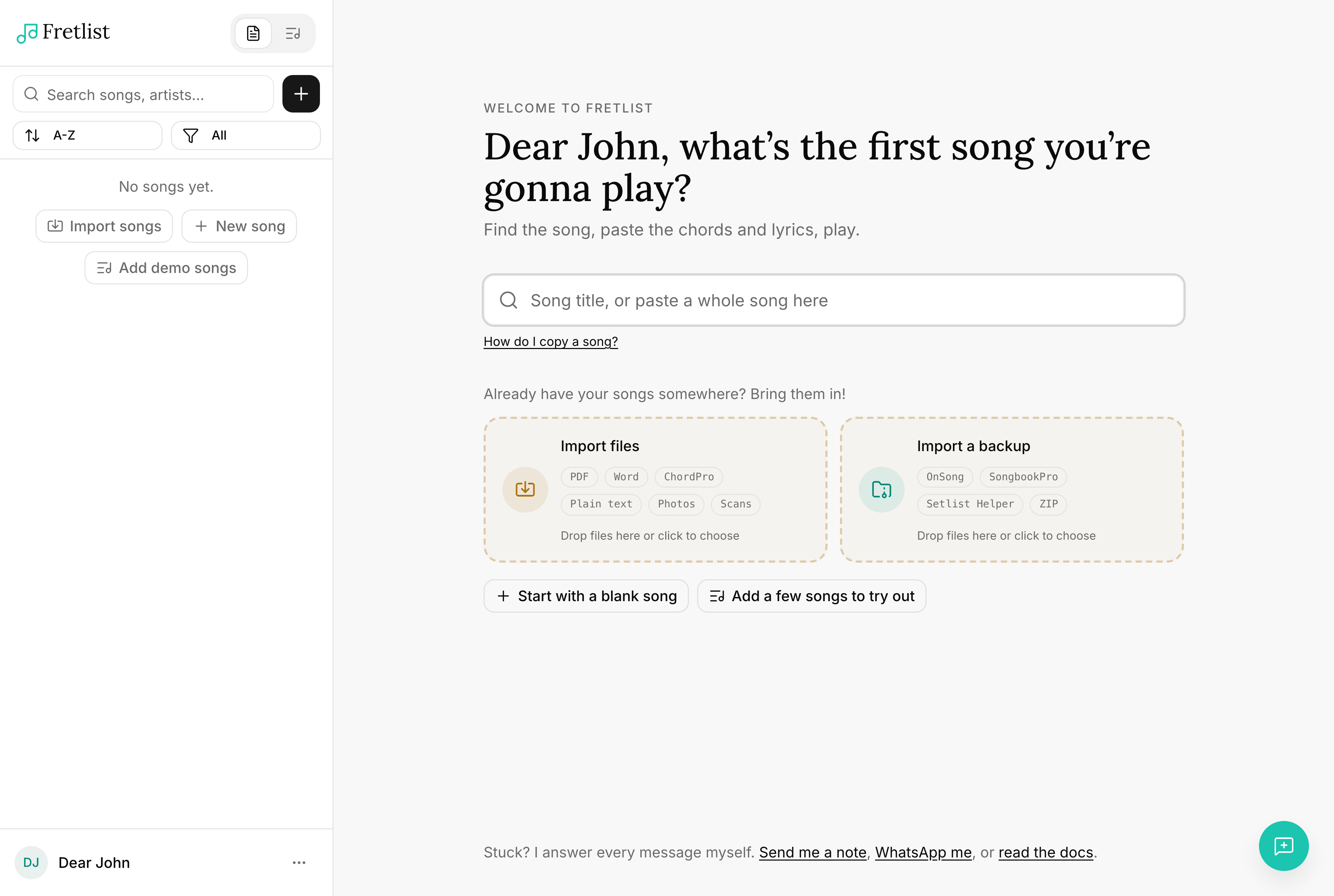
Type the title
Type the song's name. Fretlist looks the song up online as you type and shows the songs found under the field. Add the artist if there are many songs with that name: "Wonderwall by Oasis", "Wonderwall - Oasis" and "Wonderwall (Oasis)" all work.
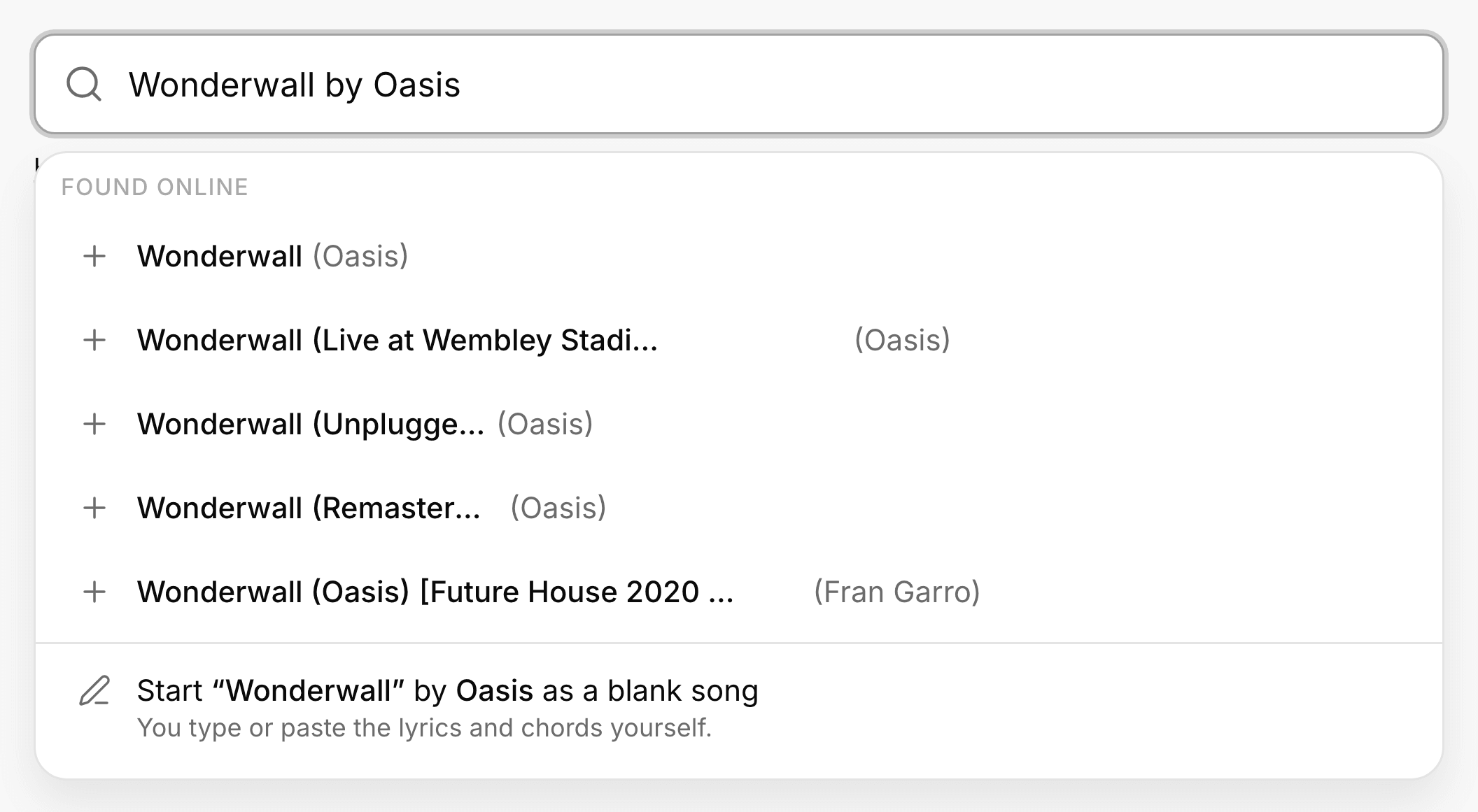
Pick the song you mean, and a dialog takes you through two steps:
- Get the chords: open the song on Ultimate Guitar or Chordie.
- Paste them here: paste the chords and lyrics, then click Add to my library.
The title and artist are filled in for you. If you would rather write the song yourself, click Start blank, I'll type it myself.
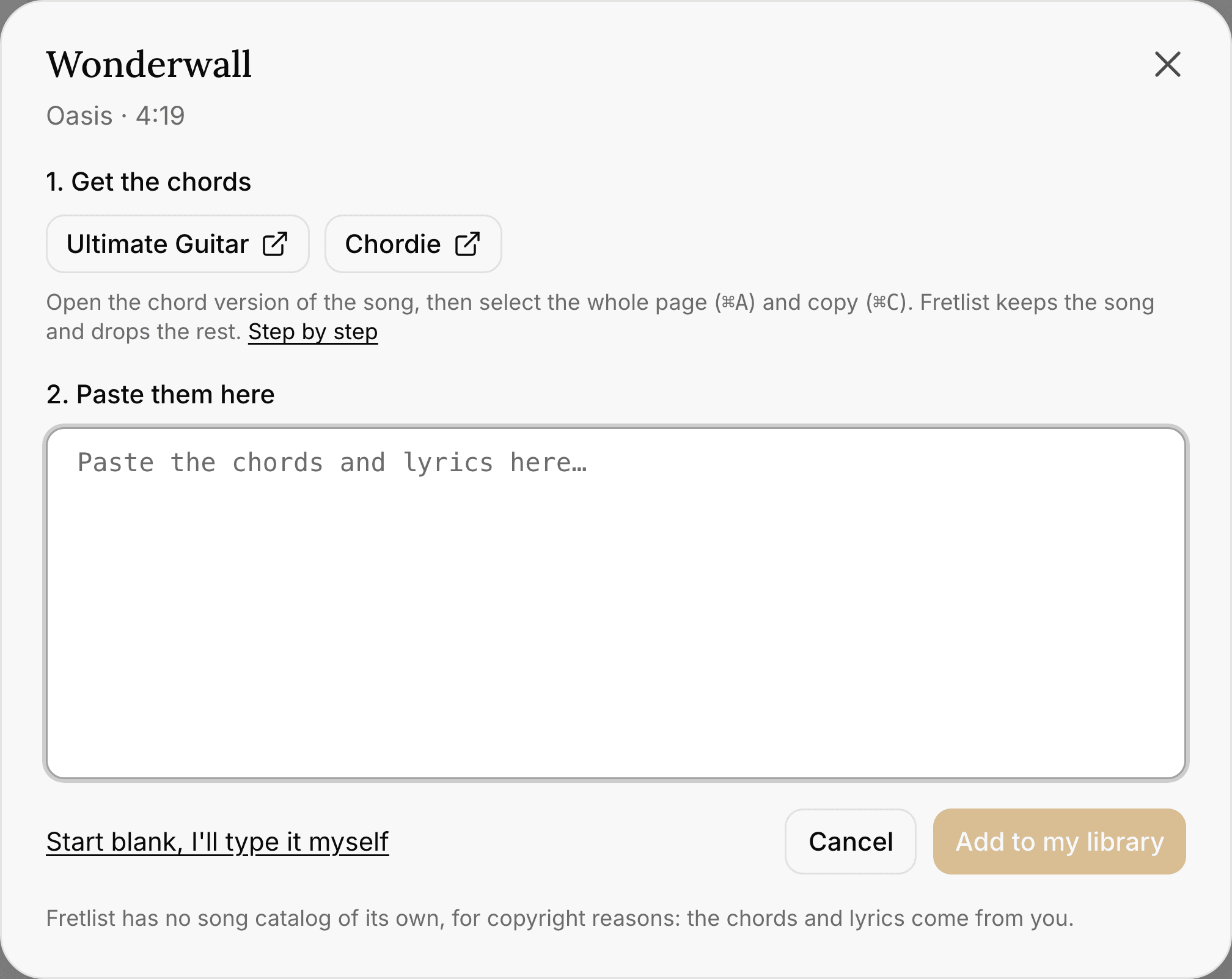
Fretlist has no catalog of chord sheets of its own, so the lyrics and chords always come from you. See Adding a song that isn't in your library yet for the full walk-through.
Start a blank song
The last line under the field always offers to Start what you typed as a blank song. You type or paste the lyrics and chords yourself in the editor.
You can put the key and capo in the same line: "Perfect by Ed Sheeran in the key of Ab, capo 1" starts the song with the title, the artist, the key and the capo already set.
Paste a whole song
Copied a song from Ultimate Guitar or anywhere else? Paste the song straight into the field. Anything longer than one line opens the paste dialog with the song filled in, so you can check the song before you import.
Not sure how to copy a song? Click How do I copy a song? under the field for the steps on your device.
You can also paste anywhere on the dashboard, without clicking the field first. Press ⌘V (Ctrl+V on Windows) and the paste dialog opens with the copied song. Close the dialog and you are back where you were.
Bring in songs you already have
Under the field, Already have your songs somewhere? Bring them in! offers two cards:
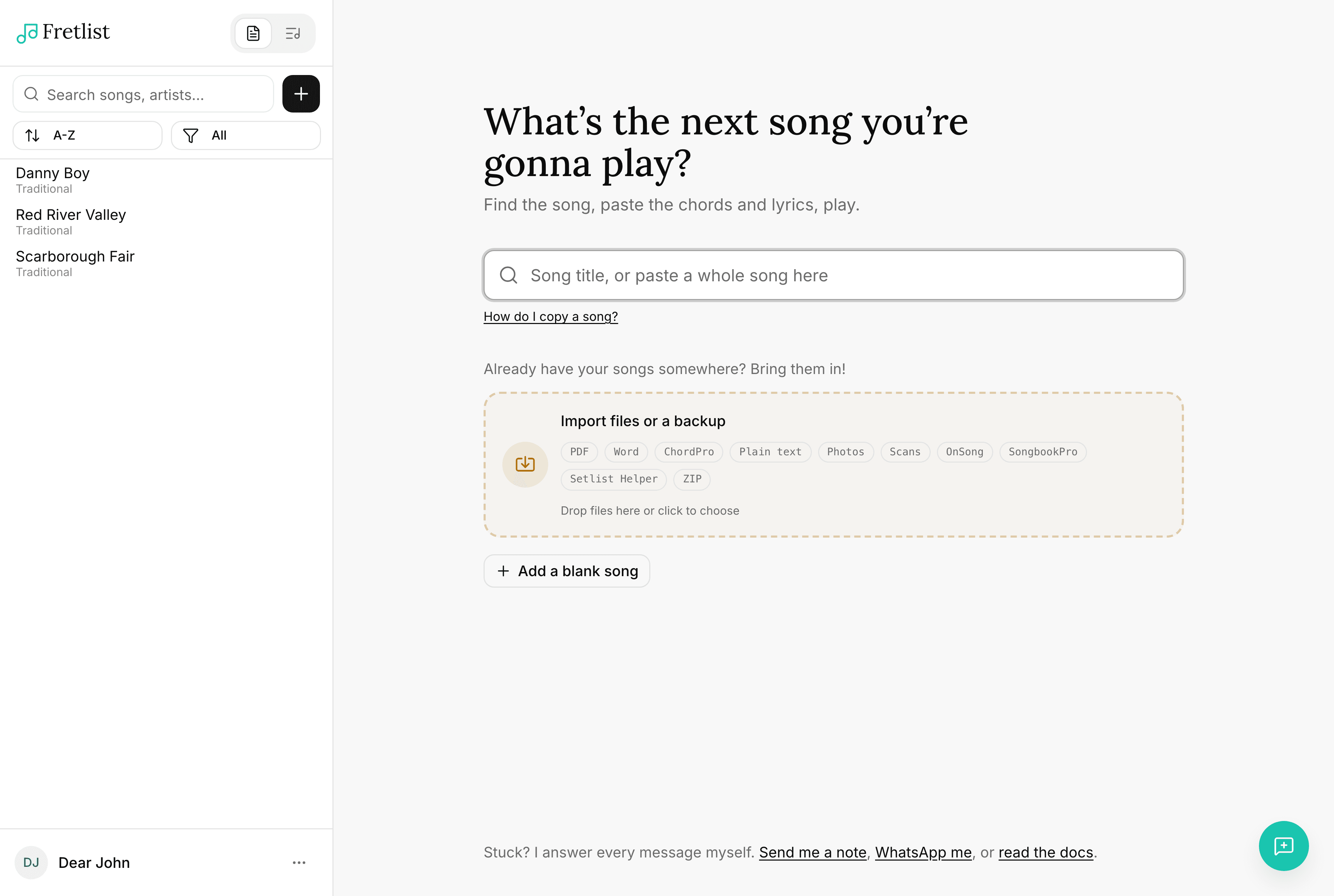
- Import files: PDF, Word, ChordPro, plain text, photos and scans.
- Import a backup: OnSong, SongbookPro, Setlist Helper and ZIP.
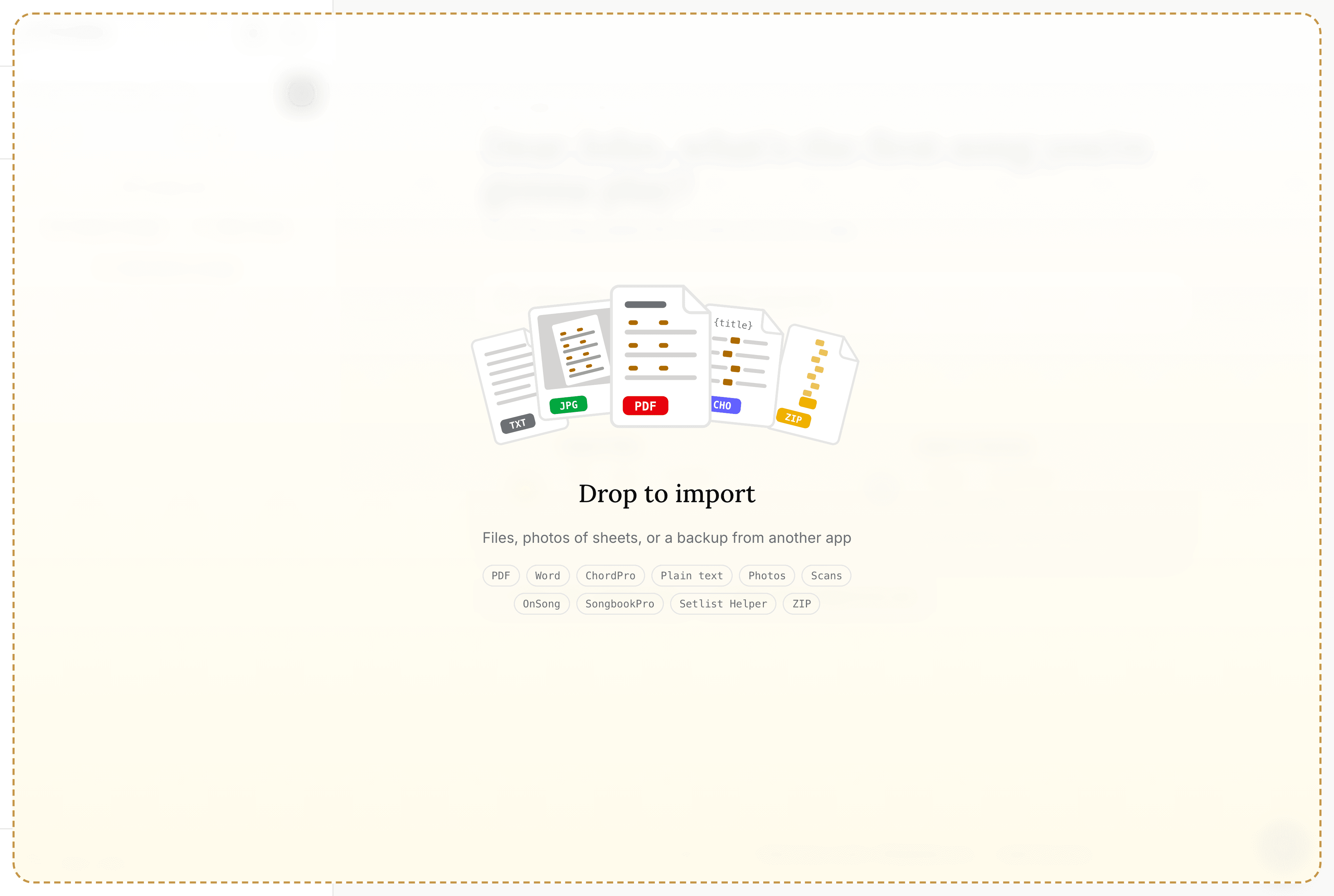
Click a card to choose the files, or drop files anywhere on the page. While you drag files over Fretlist, the whole window shows Drop to import.
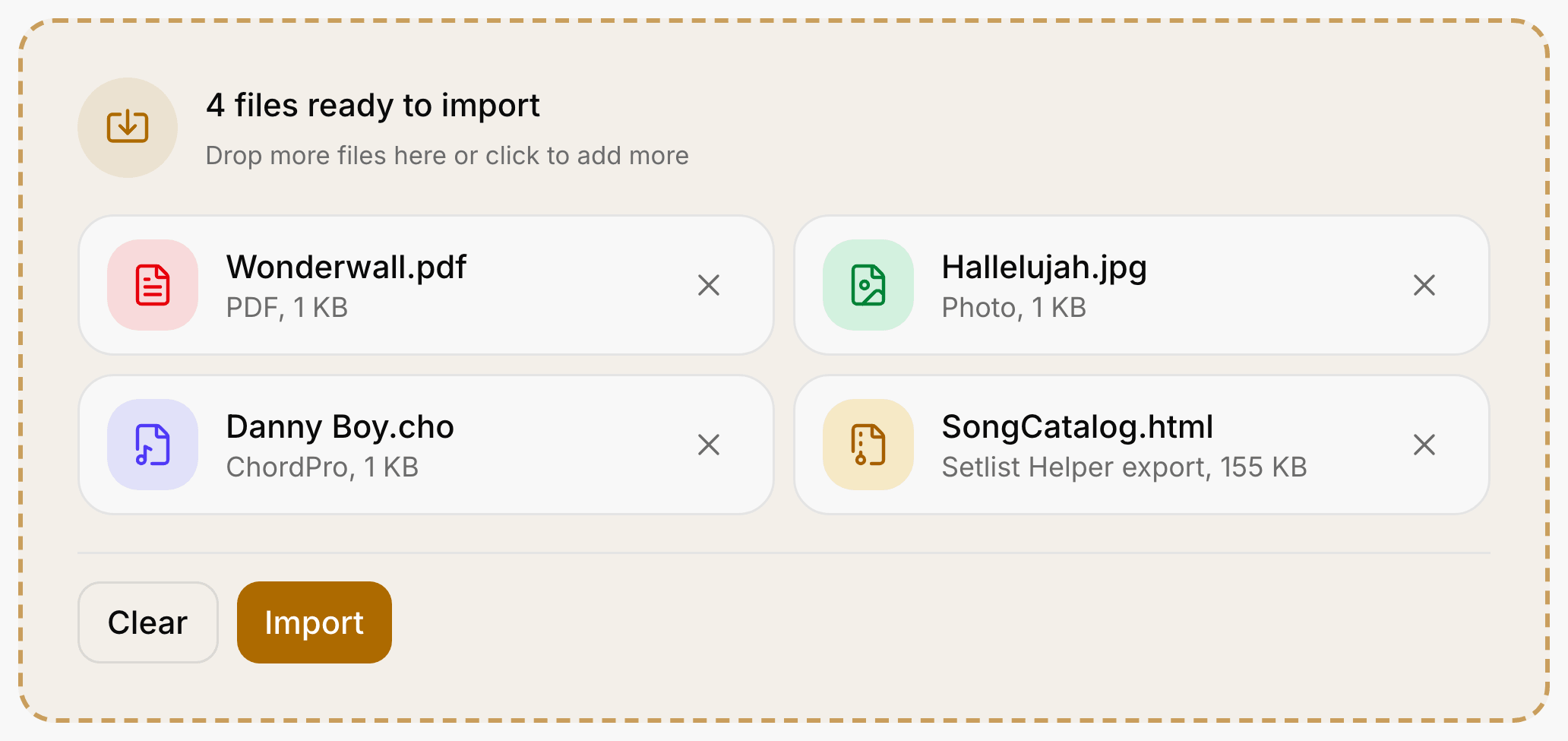
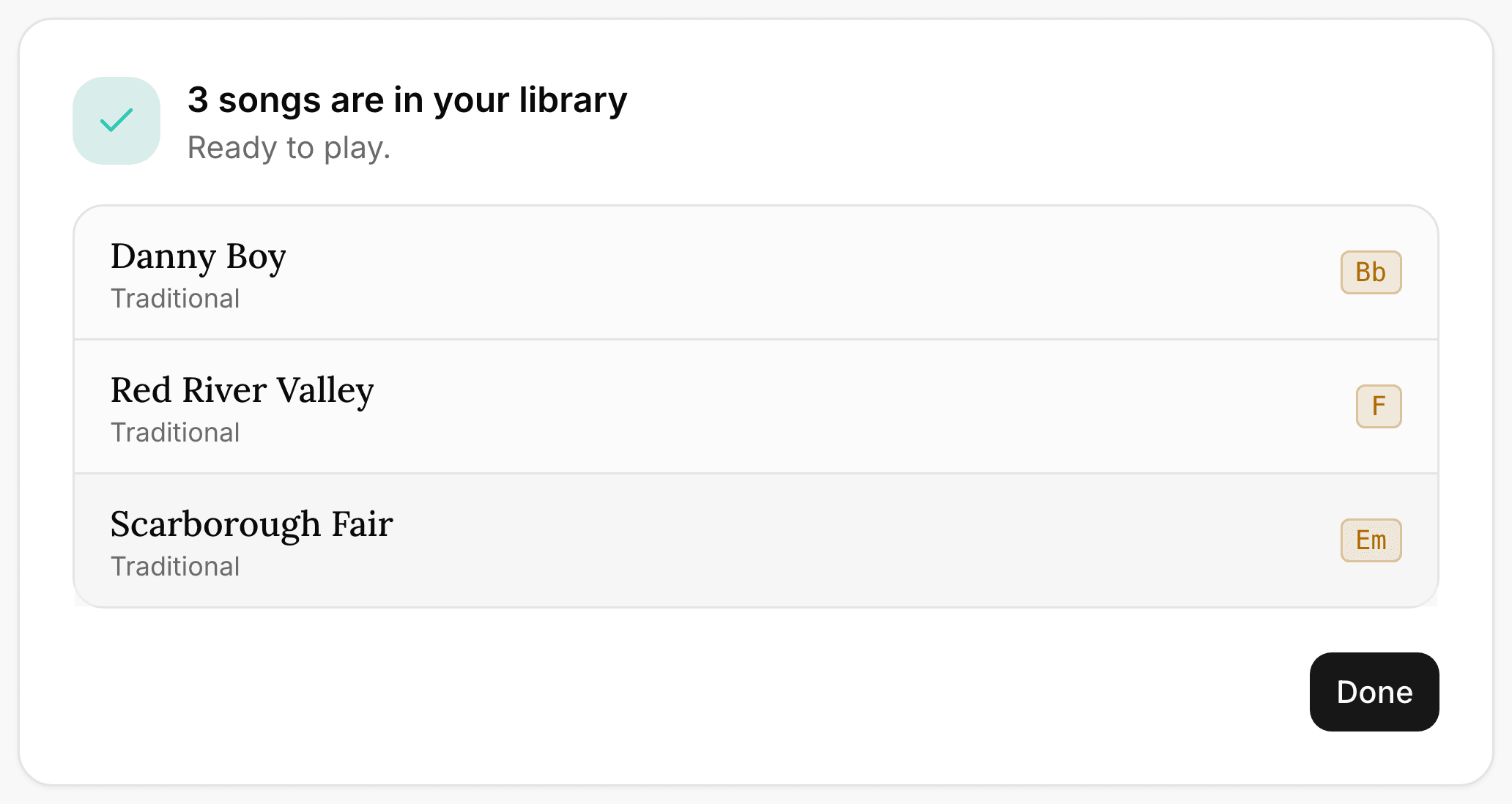
The files you picked show up as cards, one per file, with the kind of file and its size. Click Import to bring them in, or Clear to start over. When the import is done, a summary shows how many songs are in your library and the first few of them. Click a song to open it.
How each source works: OnSong, SongbookPro, Setlist Helper, Ultimate Guitar, Word. A PDF or a photo of a sheet keeps its original file on the song: see Files on a song.
Or start empty
Under the cards:
- Start with a blank song opens the editor on a new song.
- Add a few songs to try out adds a handful of example songs and a setlist, and opens the first one so you can try Play Mode right away. You can remove them later.
Your next songs
Once your first songs are in, the same screen asks What's the next song you're gonna play?. The field and the import work the same way, with one card, Import files or a backup, for everything you can bring in. The blank song button reads Add a blank song.
The dashboard from five songs
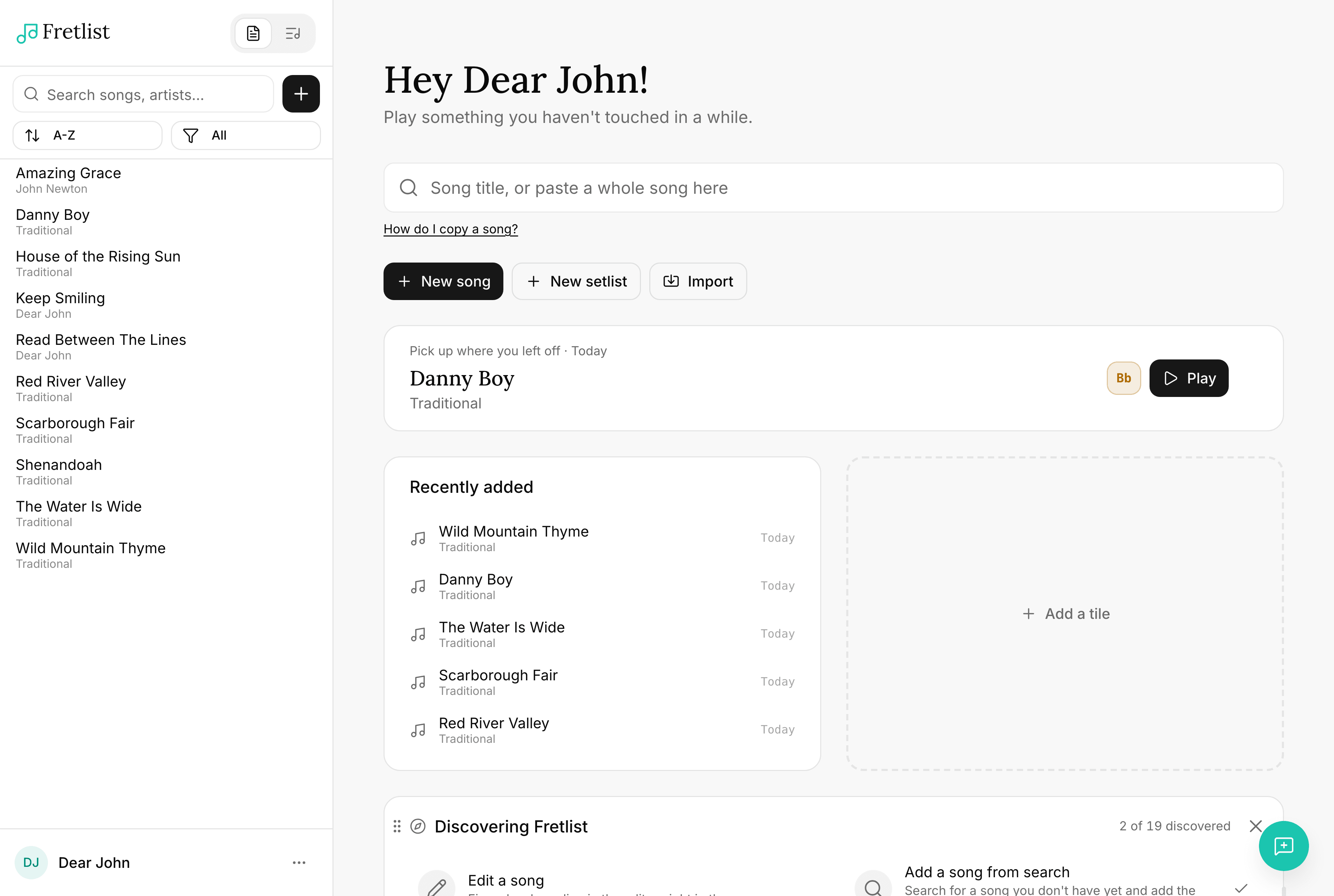
When your library has five songs of your own, the dashboard becomes your home screen. At the top:
- The song field, the same as before: type a title or paste a song.
- New song, New setlist and Import.
Below them are the tiles.
What shows up, and when
A new dashboard starts with the tiles that already have something to say:
- Pick up where you left off: the last song you opened, with Play to open the song in Play Mode.
- Recently added: the songs you added last.
- Discovering Fretlist: one thing at a time you may not know Fretlist can do, picked for where you are. Click a tip and Fretlist shows you, in the app. The count at the top says how many you have discovered.
More tiles join as your library grows:
- Song count and Setlist count: from 15 songs.
- Songs by key: from 25 songs.
- Next gigs: once a setlist has a date that's coming up.
- Duplicates: once two of your songs share a title.
The tiles join on their own only on a dashboard you have not arranged yourself. Once you move, add or remove a tile, the dashboard shows the tiles you put on it.
Arrange the tiles
- Move a tile: drag the tile by its grip. On a phone, press and hold a tile first; tap a tile again when you are done.
- Remove a tile: click its × (Remove from dashboard).
- Add a tile: click the dashed Add a tile tile and pick one. A song list tile can show any sort and filter from your song list, such as Most played or your favorites.
Your dashboard is saved with your account, so the dashboard looks the same on every device.
Need help?
At the bottom of the dashboard: Stuck? I answer every message myself. Click Send me a note to write to me from inside the app, WhatsApp me, or read the docs.