A Bluetooth page turner sends keys to your device, like a keyboard. Pedal & keys decides what each of those keys does in Play Mode. Most page turners work without any setup, because they send Page Up and Page Down. If yours sends something else, or you want a pedal button to do something different, you set it up here.
You find Pedal & keys in Settings, on the Features tab, under Pedal & keys. In Play Mode, press ? and choose Change your keys and pedal to go straight there.
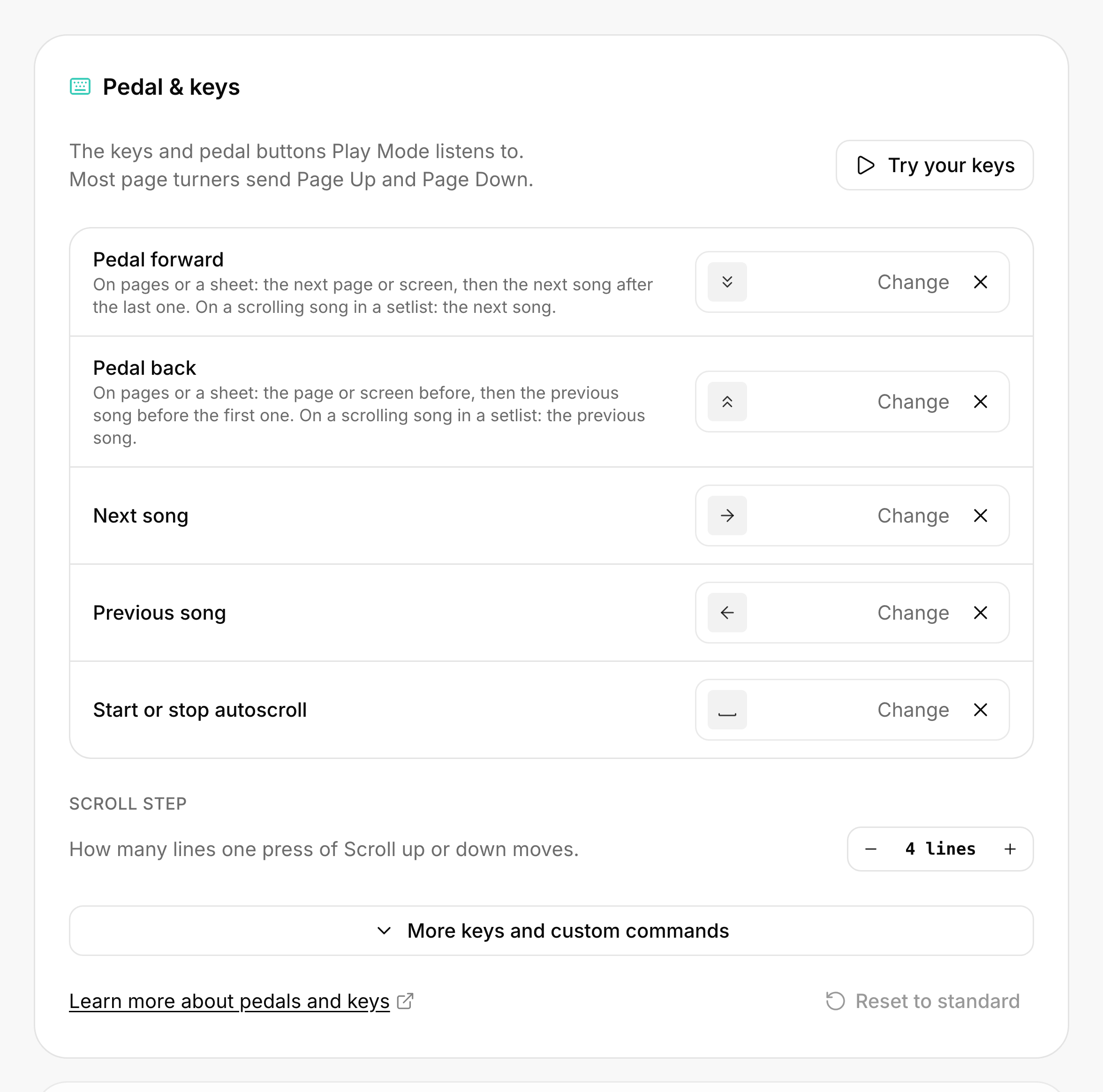
Your keys are saved on your account, so the same pedal works on your iPad, your phone and your laptop.
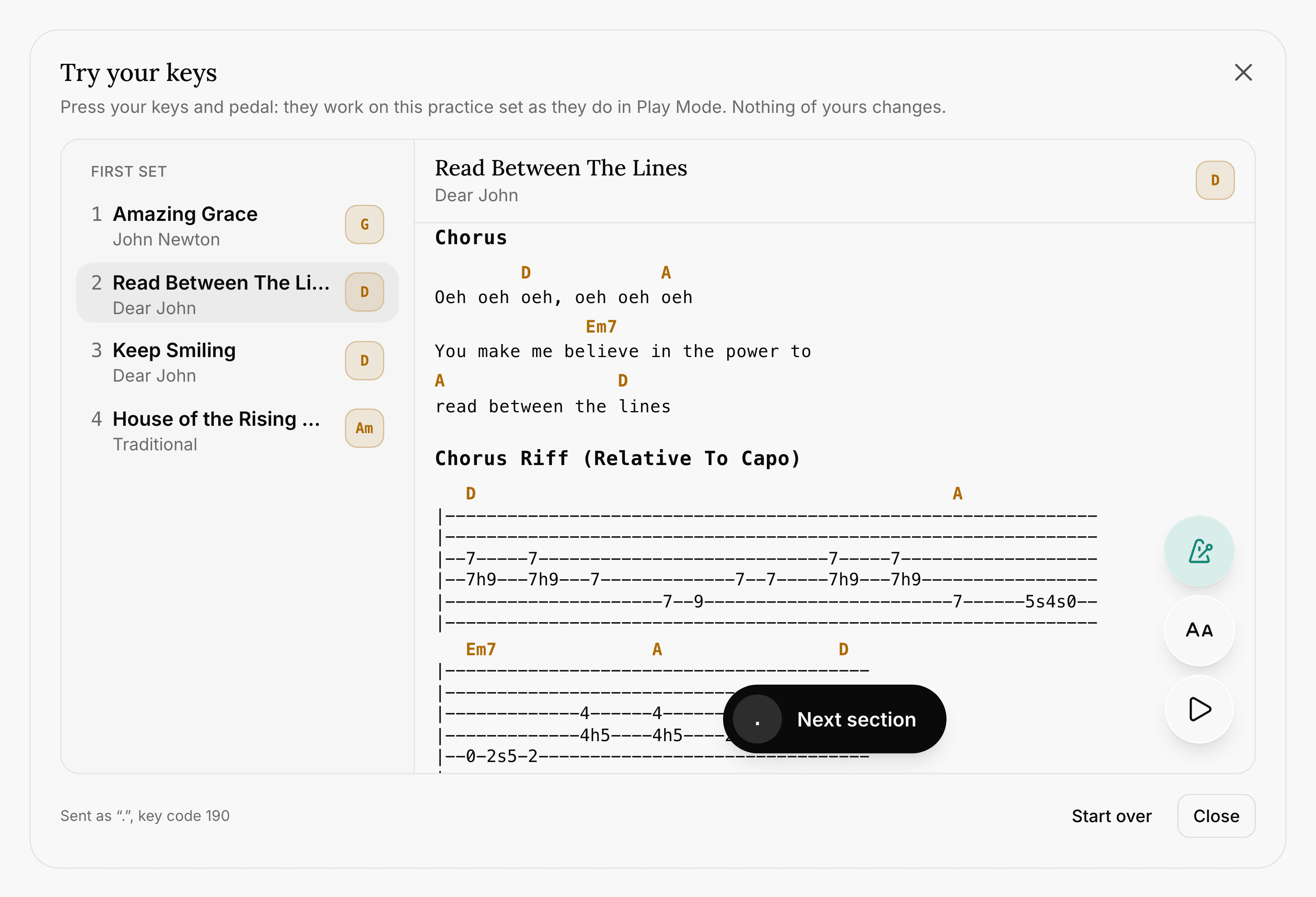
Try your pedal
Click Try your keys to try your pedal before the gig. The button opens a practice set: the four songs every Fretlist account starts with. Press a pedal button or a key, and it does there what it does in Play Mode: the next song, a scroll, the next verse, bigger text. A label at the bottom of the song names what the key did, and Play Mode's controls on the right show it too: Play turns to Pause, the metronome lights up. Nothing in your own library changes.
Under the songs, Fretlist shows what the key sent, like "Sent as PageDown, key code 34". If nothing shows up, the pedal is not sending anything to this device: check that it is switched on and paired with this device, and not with another one. Start over goes back to the first song.
Change a key
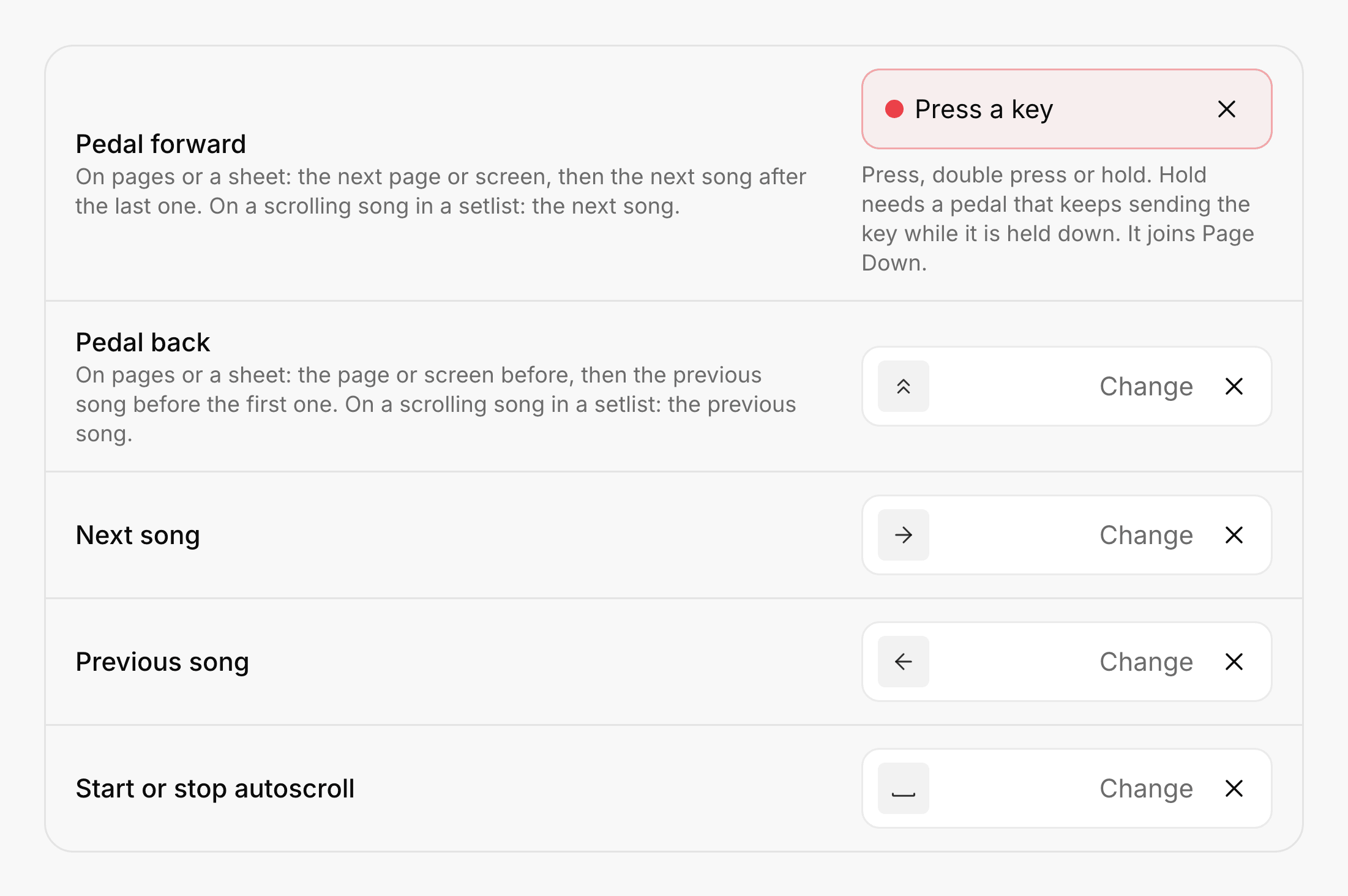
- Click Change next to the action, or Choose key when it has no key yet.
- The field turns red and says Press a key. Press the key or the pedal button.
- The key is added to that action. An action can have several keys, so a pedal button and a key on your keyboard can do the same thing.
If the key already did something else, the key moves to the new action, and a message tells you which action it left. A key always does one thing. The × in a field removes that action's keys. Press Esc to stop without changing anything.
Press, double press or hold
One pedal button can do three things. The card shows each one on its own key:
- Press the button once: shown as the key, like PgDn.
- Double press it, twice quickly: shown with ×2, like PgDn ×2.
- Hold it down: shown with hold, like PgDn hold.
So one button can turn the page on a press, go to the next song on a double press and start the scroll on a hold.
When you click Change, do the press you want: once, twice quickly, or hold it down until the field shows it. Holding needs a pedal that keeps sending the key while you hold it down. Most do, but not all: Try your keys shows whether yours does.
A key with only a press set up works the moment you press it. Play Mode waits a moment only on a key that also has a double press or a hold, to see which one you meant.
The actions and their standard keys
The first five are on the card straight away. Click More keys and custom commands for the rest.
| Action | Standard key | What it does |
|---|---|---|
| Navigate | ||
| Scroll up | ↑ | A few lines up (the scroll step). With Fit on: the page before |
| Scroll down | ↓ | A few lines down. With Fit on: the next page |
| Pedal forward | PgDn | The next page or screen, then the next song. See Pedal forward and back below |
| Pedal back | PgUp | The page or screen before, then the previous song |
| To the top of the song | Home | The top of the song, or its first page |
| To the bottom of the song | End | The end of the song, or its last page |
| Next song | → | The next song in the setlist |
| Previous song | ← | The song before it in the setlist |
| Next section | . | The next verse, chorus or bridge. With Fit on: the next page |
| Previous section | , | The section before. With Fit on: the page before |
| Follow or pause | None | In Follow Me: stop following for a moment, or follow again |
| Autoscroll and metronome | ||
| Start or stop autoscroll | Space | Starts or stops the scroll. With Fit on: the next page |
| Autoscroll faster | ] | A faster scroll |
| Autoscroll slower | [ | A slower scroll |
| Start or stop the metronome | M | The metronome on or off |
| Tap tempo | T | Tap the tempo of the song |
| On screen | ||
| Bigger text | += | Larger chords and lyrics |
| Smaller text | -_ | Smaller chords and lyrics |
| Open or close the sidebar | F | The sidebar with your notes, chord diagrams and sections |
| Show the keys | ? | The list of your keys |
Esc always leaves Play Mode and cannot be changed, so you can never get stuck. Shortcuts with Cmd, Ctrl or Alt stay your browser's, so zooming in and printing work as usual.
Pedal forward and back
Pedal forward and Pedal back do what makes sense for what is on the screen, so two pedal buttons get you through a whole set:
- A song with Fit on, or a sheet shown page by page: Pedal forward turns to the next page, and after the last page goes to the next song. Pedal back turns to the page before, and before the first page goes to the previous song.
- A sheet that scrolls: Pedal forward moves a screen down, and from the bottom goes to the next song. Pedal back moves a screen up, and from the top goes to the previous song.
- A song that scrolls, in a setlist: Pedal forward goes to the next song, Pedal back to the previous song.
- A song that scrolls, on its own: Pedal forward scrolls down, Pedal back scrolls up.
Want your pedal to always scroll, or always change the song? Put that pedal button on Scroll down or Next song instead.
How far one scroll goes
Scroll step sets how many lines one press of Scroll up or Scroll down moves: from 1 to 12, 4 to start with. One press never moves more than most of a screen, so you never lose your place.
Several actions on one key
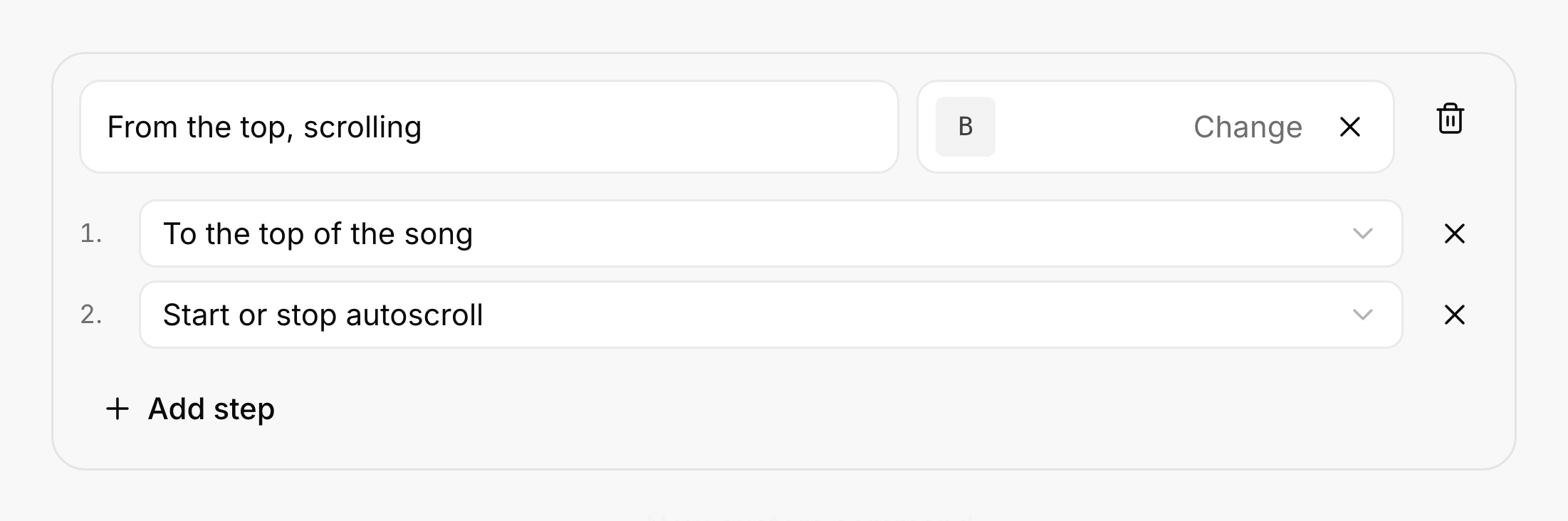
A custom command runs several actions, in order, on one key. For example From the top, scrolling: back to the top of the song, then start the scroll.
- Click More keys and custom commands, then New custom command, or Use this example to start from the example.
- Give the command a name, and choose its actions under the name. Add step adds another one.
- Click Choose key and press the key or pedal button for it.
A custom command does nothing until the command has a key: the card says so under the field. Press, double press and hold work here too.
Back to the standard keys
Reset to standard at the bottom of the card puts every key back, removes your custom commands and sets the scroll step back to 4 lines.
Your keys in Play Mode
In Play Mode, press ? to see your keys, including your custom commands. On a phone or tablet the same card shows the tips for touch, with Change your keys and pedal at the bottom.
Related
- Performing with Play Mode: Fit, auto-scroll and the rest of the stage view
- Follow Me: one device leads, the others follow